

















 Shop
Shop

iPhone Stuck in DFU Mode? 4 Fast Ways to Get Out [2026]
Category: iPhone Issues

3 mins read
When your iPhone is stuck in DFU mode, the screen stays black even though the device may still be detected by a computer. This usually happens during a firmware restore, downgrade attempt, failed iOS 27 repair, or a button-timing mistake while trying to enter DFU mode manually.
Do not keep unplugging and reconnecting the iPhone randomly. Start with a force restart, then use a guided iOS repair path if the iPhone keeps returning to DFU or will not boot. Save full restore and Apple service for cases where repair cannot bring the device back.

Quick answer
If your iPhone is stuck in DFU mode, force restart it first using the button combination for your model. If it goes back to a black DFU screen after an iOS 27 restore, downgrade, or firmware repair, use a system repair workflow before choosing a full computer restore. If the iPhone is not detected or may be physically damaged, contact Apple Support.
In this article:

Why iPhone Gets Stuck in DFU Mode
DFU mode is the deepest firmware restore state on an iPhone. The screen is supposed to be black in DFU mode, so the real warning sign is that the iPhone will not exit DFU, will not restore, or keeps returning to the black screen after a restore attempt.
Here are the possible reasons why your iPhone is stuck in DFU mode:
- Button timing went wrong while trying to enter DFU mode.
- An iOS 27 update, downgrade, or restore was interrupted.
- The firmware restore failed and the iPhone cannot boot normally.
- The USB cable, computer, or Apple restore tool lost connection during repair.
- The iPhone has hardware damage, liquid exposure, or a battery problem.
If the iPhone still appears in Finder, Apple Devices, iTunes, or a repair tool, the problem is often recoverable through software. If it is not detected at all, heats abnormally, or was dropped or exposed to water, software methods may not be enough.
How to Fix iPhone Stuck in DFU Mode
Use these methods in order. They are arranged to reduce bounce and help you avoid jumping straight to a data-erasing restore before easier DFU exit options have been tried.
1 Force Restart iPhone to Exit DFU Mode
A force restart is the first method to try because it can pull the iPhone out of DFU mode without using a computer restore. The exact buttons depend on your iPhone model.
- Step 1 Hold down the Sleep/Wake button and the Home button simultaneously for about 10 seconds.
- Step 2 Let go when the Apple logo appears and the device should restart.

The above steps are for iPhone 6s or earlier. For iPhone 7 and 7 Plus, use the buttons below:
- Step 1 Long-press both the Power and Volume Down buttons for about 10 seconds.
- Step 2 When the Apple logo shows up, you can release the buttons and restart your iPhone.

For iPhone 8/X/11/12/13/14/15/16/17, use the newer force restart sequence:
- Step 1 Press and quickly release the Volume Up button, then press and quickly release the Volume Down button.
- Step 2 Hold the Side button until the Apple logo appears. If the screen stays black and the computer still reports DFU mode, continue to the next method.

2 Repair DFU Mode with Fixppo
If force restart does not work and the iPhone still responds to a computer, iMyFone Fixppo gives you an easy way to repair the firmware problem behind an iPhone DFU mode stuck case. This is especially useful when repeating the same Apple restore step keeps returning to a black screen.
For this DFU issue, the value is not just "exiting DFU"; it is helping the iPhone complete a clean iOS repair path before you decide whether a full restore is necessary.
Start with Standard Mode when the device is detected, and move to deeper restore options only when the repair cannot complete.

Get iPhone/iPad Out of DFU Mode:
- Repair iOS firmware problems that can leave the iPhone on a black DFU-mode screen.
- Offer to enter/exit recovery mode in 1 click for FREE when recovery mode is the better route.
- Support recent iPhone models and iOS versions, including iOS 27 repair scenarios, on supported devices.
- Help users continue when DFU restore fails or the iPhone keeps returning to a firmware-repair screen.
- It's beginner-friendly and requires no technical skills.
Here are the steps to repair an iPhone stuck in DFU mode:
Step 1: Click the Try It Free button to install Fixppo, then connect the iPhone to the computer with a stable cable.
Step 2: Choose Standard Mode first when the device is detected. It is the better starting point before erase-based restore because it focuses on common iOS system repair.

Step 3: Check the detected device model and firmware version, then click Download. The firmware package is used to repair the iOS system and help the iPhone boot normally again.
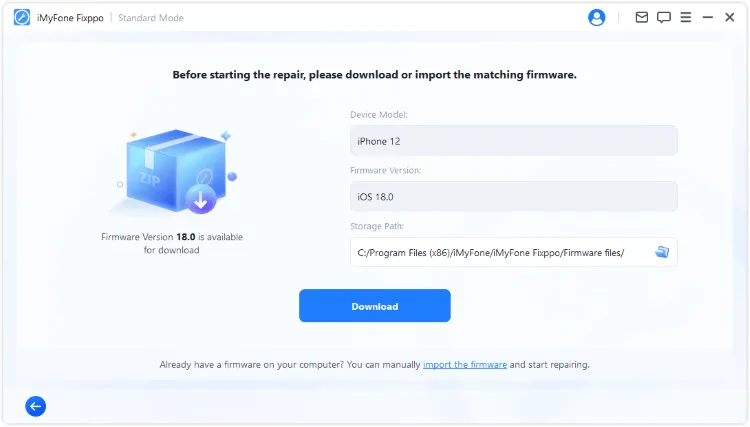
Step 4: Click Start Standard Repair and keep the iPhone connected until the repair finishes. After the device restarts, check whether it reaches the Lock Screen instead of returning to DFU mode.

If the iPhone restarts normally, keep it charged and avoid starting another restore immediately. If it still returns to DFU mode, move to the restore or service options below.
For users who are stuck between a failed Apple restore and a black DFU screen, Fixppo gives a guided next step before full erase-based recovery.

3 Restore iPhone with Finder / Apple Devices / iTunes
If repair cannot complete, restore the iPhone with Apple's computer tools. Use Finder on macOS, Apple Devices on newer Windows setups, or iTunes on older Windows systems. This can erase the iPhone, so use it after you have tried the lower-friction exit and repair methods.
- Step 1 Open Finder, Apple Devices, or iTunes on your computer, then connect your iPhone using a reliable cable.
- Step 2 The computer may report that the iPhone is in recovery mode and needs to be restored before it can be used.
- Step 3 Hit on OK > Restore button and confirm your actions. Then iTunes will start to restore your iPhone.

4 Contact Apple Service
If your iPhone is stuck in DFU mode, will not restore, and is not detected reliably by the computer, the hardware may be damaged. This is more likely after a drop, liquid exposure, swelling battery, repair attempt, or repeated restore failure. Bring the iPhone to Apple Store or an Apple Authorized Service Provider and prepare the items below.
- Have your Apple ID password ready. There are some repairs that will require it.
- Bring your sales receipt as proof of purchase may be necessary.
- Bring the device and all the accessories it came with at the time of purchase.
- Check whether you need to book an appointment.

FAQs about iPhone in DFU Mode
1 What is iPhone DFU mode?
DFU means Device Firmware Update. It is a low-level restore state that lets a computer communicate with the iPhone firmware even when iOS is not booting normally. The screen stays black in DFU mode, which is why many users think the iPhone is dead.
2 Does DFU mode delete everything on an iPhone?
Entering DFU mode itself does not erase the iPhone. The data risk comes from what you do next. A DFU restore through Finder, Apple Devices, or iTunes can erase the device and reinstall iOS.
3 Can you put iPhone in DFU mode without computer?
No. DFU mode requires precise button timing and a computer connection. If your real goal is to repair an iPhone that will not boot, recovery mode or a guided iOS repair workflow is usually easier to manage.
Conclusion
If your iPhone is stuck in DFU mode, start with a force restart, then move to Fixppo when the problem follows an iOS 27 restore, downgrade, or firmware repair. Use Apple's restore tools when repair cannot complete, and choose Apple service when the iPhone is not detected or may have hardware damage.


(Click to rate this post)
Generally rated 4.8 (256 participated)

Rated successfully!

You have already rated this article, please do not repeat scoring!