

















 Shop
Shop


iPhone reset not going as planned? Fixppo can get it done without a passcode while keeping your important data intact.
You may need to reset your iPhone because it is frozen, you forgot the passcode, or you are preparing to sell it. The confusing part is that reset can mean three different things, and only one of them erases your data.
So before pressing buttons or choosing Erase, let us identify whether you need a soft reset, hard reset, or factory reset. You will also learn how to reset your iPhone without passcode.

In this article:
- Soft Reset vs. Hard Reset vs. Factory Reset
- Which Type of iPhone Reset Should You Use?
- How to Soft Reset iPhone with Buttons (No Data Loss)
- How to Hard Reset iPhone with Buttons (No Data Loss)
- How to Factory Reset iPhone in 6 Ways (Data Loss)
- Factory Reset iPhone with Fixppo (Keep Key Data, No Passcode)

- Factory Reset iPhone with Forgot Passcode
- Reset iPhone to Factory Settings
- Factory Reset iPhone with a Computer
- Factory Reset iPhone Through iCloud
- Factory Reset iPhone from Another Apple Device
- What to Do Before and After a Factory Reset
- FAQs About Resetting an iPhone
- Conclusion: How to Reset iPhone Safely
Soft Reset vs. Hard Reset vs. Factory Reset
1 Which Type of iPhone Reset Should You Use?
A soft reset is a normal power-off and restart for an iPhone that still responds. A hard reset forces a frozen iPhone to restart with its buttons. Neither one deletes your data. A factory reset erases the device and returns it to the setup screen, so reserve it for selling the iPhone, removing its contents, recovering from a forgotten passcode, or dealing with a persistent problem.
| Reset type | When to use it | Deletes data? |
|---|---|---|
| Soft reset | The iPhone responds but feels slow or unstable. | No |
| Hard reset | The screen or controls are frozen. | No |
| Factory reset | You need to erase, unlock, sell, or fully restore it. | Yes |
2 How to Soft Reset iPhone with Buttons
Try a soft reset first when the iPhone still responds. Your data stays on the device, so this is the lowest-risk way to clear a temporary slowdown or minor glitch.
- Press and hold either Volume button and Side button until the power-off slider appears.
- Drag the slider, then wait about 30 seconds.
- Press and hold the Side button until the Apple logo appears.

Soft Reset iPhone 6, 7, 8, SE 2, or SE 3
- Press and hold the Side button until the power-off slider appears.
- Drag the slider, then wait about 30 seconds.
- Press and hold the Side button until the Apple logo appears.

Soft Reset iPhone SE 1, iPhone 5, or Earlier
- Press and hold the Top button until the power-off slider appears.
- Drag the slider, then wait about 30 seconds.
- Press and hold the Top button until the Apple logo appears.
3 How to Hard Reset iPhone with Buttons
Use a hard reset when your iPhone is frozen or the screen will not respond. It forces a restart but does not erase your data. The buttons differ by model.

Hard Reset iPhone 8 or Later and iPhone SE 2/3
- Quickly press and release Volume Up.
- Quickly press and release Volume Down.
- Hold the Side button until the Apple logo appears.
Hard Reset iPhone 7 or iPhone 7 Plus
- Hold the Volume Down and Side buttons together. Release them when the Apple logo appears.
Hard Reset iPhone 6s, iPhone SE 1, or Earlier
- Hold the Home and Side or Top buttons together. Release them when the Apple logo appears.
If the same freeze returns after restarting, you are probably dealing with more than a temporary lockup. The factory-reset and repair options below address that situation.
How to Factory Reset iPhone in 6 Ways
Factory reset is the reset type that erases the iPhone. Use it when you are trying to fix a serious issue that survived normal restart and repair steps. Back up first if you need the current data.
1 Factory Reset iPhone with Fixppo
It happens when you don't remember your passcode and don’t want to deal with Apple’s “Forgot Passcode” process.
For this situation, iMyFone Fixppo is the perfect choice. It guides you through the whole reset process without needing the passcode. What makes it a better choice is that you can choose to keep important data, including your photos, videos, and messages.

iMyFone Fixppo
- No screen passcode needed: Start a factory-reset workflow even when you cannot open Settings.
- Back up data first: Use the data backup feature and choose the data you want to keep.
- Clear on-screen guidance: Choose the reset option that matches whether the iPhone is locked, frozen, or failing to restore.
- Reset and repair together: Address Apple logo, recovery screen, and restart-loop problems from the same toolkit.
- Built for non-technical steps: Follow prompts instead of combining button timing with several Apple utilities.
- iOS 27/iPhone 17 supported.
This is a great video on how to factory reset iPhone when you forget password:
The reset workflow is guided on screen. Keep the iPhone connected during firmware download and reset, and do not interrupt the process once it starts.
Step 1: Download and install Fixppo to your computer, launch it and connect your iPhone to the computer. Then, click Device Reset to proceed to the next step.

Step 2: Choose the reset mode that matches your situation. If you can still enter Settings, Apple's built-in reset is usually enough. If the iPhone is stuck or restore keeps failing, use the guided reset path.

Step 3: Fixppo will detect your device automatically. Choose the firmware file you need and click on the Download button to get the firmware file needed for the factory reset process.

Step 4: With the downloaded firmware ready, click the start button and wait until the reset process finishes. The iPhone may restart during the process.

After the process finishes, set up the iPhone again and confirm whether the original freeze, restore failure, or reset problem is gone. If the iPhone still cannot boot, treat it as a deeper iOS or hardware issue.

2 Factory Reset iPhone with Forgot Passcode
If the iPhone shows iPhone Unavailable or Security Lockout, you may be able to erase it from the lock screen using "Forgot Passcode?"

Requirements for Resetting using "Forgot Passcode?"
- Find My was enabled before the iPhone became locked.
- The iPhone has an active Wi-Fi or cellular connection.
- You know the password for the Apple Account signed in on the iPhone.
How to Erase iPhone Without a Passcode
- On the unavailable screen, tap Forgot Passcode?
- Tap Start iPhone Reset.
- Enter your Apple Account password to sign out.
- Tap Erase iPhone and wait for the setup screen.
If this option does not appear, use a computer and recovery mode or another method below.
3 Reset iPhone to Factory Settings
What to Check Before Erasing Your iPhone
Back up anything you want to keep, make sure you know your Apple Account password, and keep the iPhone connected to power. Everything stored locally will be removed.
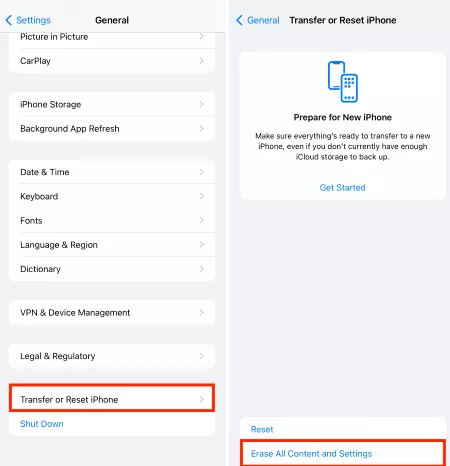
How to Erase All Content and Settings
- Open Settings > General > Transfer or Reset iPhone.
- Tap Erase All Content and Settings, then tap Continue.
- Enter the iPhone passcode and Apple Account password when requested.
- Choose whether to keep or delete the eSIM, then confirm the erase.
Should You Keep or Delete the eSIM?
Keep the eSIM if you plan to use the same iPhone and mobile plan again. Delete it when your carrier instructs you to, or when you are selling or giving away the device. You may need your carrier to reactivate a deleted eSIM.
4 Factory Reset iPhone with a Computer
This route works when the iPhone connects to a Mac or PC. Turn off Find My first for a normal restore when possible. A computer restore erases the device and installs the latest compatible iOS version, but it does not automatically delete the eSIM.
Factory Reset iPhone with Finder on Mac
- Connect the iPhone and open Finder.
- Select the iPhone in the sidebar, then open General.
- Click Restore iPhone, then confirm Restore.
Factory Reset iPhone with Apple Devices on Windows
- Connect the iPhone and open Apple Devices.
- Select the iPhone in the sidebar, then open General.
- Choose Restore iPhone and confirm.
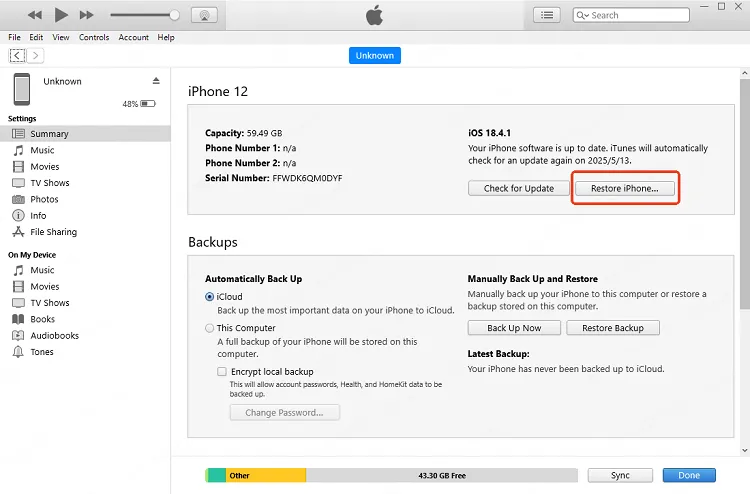
Factory Reset iPhone with iTunes
- Connect the iPhone and open iTunes.
- Click the device icon and select Summary.
- Click Restore iPhone, then confirm Restore.
Use Recovery Mode When the iPhone Cannot Be Detected
If the computer cannot recognize the iPhone normally, place it in recovery mode with the correct buttons for your model. Once Finder, Apple Devices, or iTunes detects it, choose Restore. Recovery mode is a separate fallback, not part of every normal restore.
5 Factory Reset iPhone Through iCloud
This works only if Find My was already enabled and the iPhone can connect to the internet.
How to Erase iPhone at iCloud.com/find
- Go to iCloud.com/find and sign in.
- Open Find Devices and select the iPhone.
- Choose Erase This Device and follow the prompts.

What Happens to Activation Lock After the Erase?
Remote erase removes the content, but Activation Lock stays enabled. The Apple Account password is still required to reactivate the iPhone.
6 Factory Reset iPhone from Another Apple Device
Erase the iPhone Through the Find My App
On an Apple device already signed in to the relevant Apple Account, open Find My > Devices, select the iPhone, tap Erase This Device, and follow the prompts.

What to Do When You Are Using a Borrowed Device
Do not sign the borrowed iPhone into your account through Settings. Open a private browser window and use iCloud.com/find, then sign out and close the window when finished.
What to Do Before and After a Factory Reset
1 Back Up Important iPhone Data
Create an iCloud or computer backup before erasing whenever you still have access. No reset tool can recover an unmade backup.
2 Prepare Your Apple Account Password
You may need it to turn off Find My, confirm an erase, or pass Activation Lock during setup.
3 Restore a Backup or Set Up the iPhone Again
After the erase, follow the setup assistant. Restore an iCloud or computer backup, or choose a clean setup if you are troubleshooting persistent software trouble.
FAQs About Resetting an iPhone
1 Can You Factory Reset an iPhone with Buttons?
Not with buttons alone. The buttons can hard reset the iPhone or place it in recovery mode, but completing a factory reset requires Settings, an erase option, Find My, or a computer.
2 Does a Hard Reset Delete iPhone Data?
No. A hard reset restarts an unresponsive iPhone without removing your photos, apps, or settings.
3 How Do You Factory Reset an iPhone Without a Passcode?
Use Fixppo, Forgot Passcode on a supported unavailable screen, Find My, or recovery mode with a computer. Every factory-reset route erases local data.
4 Can You Factory Reset an iPhone Without an Apple Account Password?
You may be able to erase it through a computer, but Activation Lock can still require the Apple Account credentials during setup. A factory reset does not remove Activation Lock.
5 Does Factory Reset Delete the eSIM?
Settings lets you choose whether to keep or delete it. A computer restore does not automatically delete the eSIM.
6 What If the iPhone Is Still Stuck After a Reset?
Try a guided iOS repair if the iPhone remains on the Apple logo, recovery screen, or a restart loop. Persistent failure can also indicate a hardware problem that needs inspection.
Conclusion: How to Reset iPhone Safely
Knowing how to reset iPhone safely starts with choosing the right reset. Use a soft reset for a normal restart, a hard reset when the iPhone is frozen, and a factory reset only when you are ready to erase it.
If you cannot use the passcode or the Apple restore route keeps failing, iMyFone Fixppo offers a guided reset and repair path. Whichever method you choose, back up first when possible and keep your Apple Account details ready.


Melvin Cooper has over 10 years of experience in the technology industry and is an expert at providing tips and handy solutions to Apple and Android users. Dedicated to helping millions of users improve their experience with mobile devices, he has maintained an impressive record of solving problems.
-
iPhone Not Charging After iOS 27 Update? 10 Fixes [2026]
iPhone not charging after update? Diagnose charger, temperature, port, and iOS issues, then learn when Fixppo or Apple service is the right next step.
7 mins read -
How to Get iOS Beta on iPhone in 2026 (Full Guide)
Learn how to get iOS beta, install iOS 27 public or developer beta, remove it safely, and fix stuck beta update issues.
12 mins read -
Fix iPhone Stuck on Update Requested [iOS 27 Supported]
iPhone stuck on update requested? Learn why it happens and discover 8 proven solutions to get your iOS update back on normal without data loss.
3 mins read -
[2026 New] How to Stop iOS 27/26/18 Update in Progress?
How to stop iOS 27/26/18 update in progress when you feel like staying in the current iOS version? Here's how to do it via 4 methods.
3 mins read -
5 Ways for iOS 26 Beta Download [Developer & Public Beta]
How to get iOS 26 beta? Whether you want to download iOS 26 developer or public beta, you can find the suitable methods with our guide. 5 Ways here!
3 mins read -
17 Important Facebook Statistics You Should Know in 2026
Do you want to know some up-to-date Facebook statistics? We break down 17 must-know Facebook stats about demographics, engagement rate and more.
3 mins read
Was this page helpful?
Thanks for your rating
Rated successfully!
You have already rated this article, please do not repeat scoring!