
















 Shop
Shop


One Problem from Apple Community
My iPhone turns off and on repeatedly. It goes from a black screen to the Apple start up screen then back to the black screen. About 30 minutes of doing this it will come up to my home screen and as soon as I enter my passcode it will bring up my apps and then shut down again.
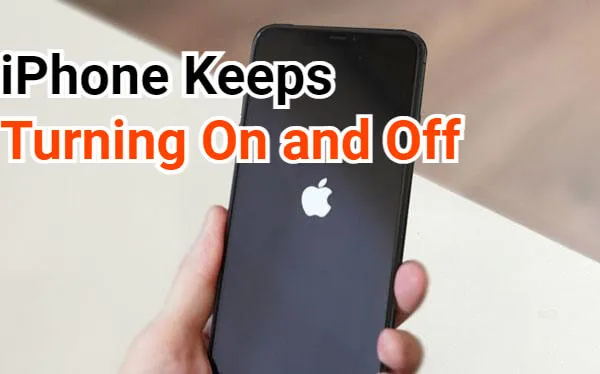
This guide starts with symptom diagnosis, then moves from low-risk checks to system repair, Apple restore, and hardware service so you can tell whether the iPhone keeps restarting because of software or physical damage.
If your iPhone keeps turning on and off, the cause is not always the battery. In 2026, this query often appears after an iOS 27 update, failed restore, low-storage crash, or app conflict.

Quick answer
If iOS 27 keeps restarting, charge the iPhone first, force restart it, and check storage or recently installed apps. If the iPhone turns on then off at the Apple logo or stays in an iPhone restart loop, use a system repair path before assuming the battery is bad.
In this article:
- Why Does My iPhone Keep Turning On and Off?
- Fix iPhone Restart Loop with a Lower-Data-Risk Repair Path

- Basic Ways to Fix iPhone Keeps Restarting
- Drain iPhone Battery
- Clear iPhone Storage
- Offload Problematic Apps
- Force Restart iPhone
- Update or Reinstall iOS 27
- Restore with Finder / Apple Devices / iTunes
- Enter Recovery Mode
- Contact Apple Support
- FAQs
Why Does My iPhone Keep Turning On and Off?
If your iPhone turning off and on by itself, it can be frustrating. Since this issue can stem from various causes, understanding why this happens helps you better find a solution. So, why does my iPhone keep turning off and on by itself? Let’s explore the possible reasons.
Reason 1: Failed Update
If recently you've attempted to update your iPhone to the new iOS 27 but the update failed, it could result in the iPhone keeps shutting off and back on repeatedly issue.
Reason 2: Attack from Malware
Installing apps from other sources can make the device vulnerable to external security threats like malware, resulting in the iPhone keeps turning on and off problem or iPad not turning off.
Reason 3: Overheating
If you have been using the device while charging, the iPhone may get hot and shut down abnormally to prevent damage.
Reason 4: Insufficient Storage
When your iPhone is in the lack of enough storage space, it may turns off and on repeatedly.
Reason 5: Hardware Problem
You iPhone keeps turning on and off when it is dropped, exposed to liquid or the battery is damaged.
These are the possible reasons why your iPhone is turning on and off repeatedly. Below are 9 methods to resolve this problem. You can also learn about their differences first.
| Solutions | Success Rate | Data Loss Risk | Ease of Use | Required Time |
|---|---|---|---|---|
| Fix iPhone Restart Loop with a Lower-Data-Risk Repair Path | 99% | Lower Data Risk | Very Easy (3 Clicks) | 5 - 10 mins |
| Drain iPhone Battery | 20% | No | Easy | 1 - 2 hours |
| Clear iPhone Storage | 20% | No | Easy | 1 - 5 mins |
| Offload Apps | 20% | Partial Data Loss | Easy | 1 - 5 mins |
| Hard Reset iPhone | 40% | No | Easy (Manual Steps) | 10 - 15 mins |
| Update or Reinstall iOS 27 | 50% | No | Moderate (Manual Steps) | 50 - 55 mins |
| Restore with Finder / Apple Devices / iTunes | 60% | All Data Loss | Moderate (Finder / Apple Devices / iTunes Needed) | 1 - 2 hours |
| Enter Recovery Mode | 70% | All Data Loss | Difficult (Manual Steps) | 1 - 2 hours |
| Contact Apple Support | 99% | Possible Data Loss | Hard (Professional Help) | > 1 day |
Fix iPhone Restart Loop with a Lower-Data-Risk Repair Path
Use iMyFone Fixppo if the restart loop began after an iOS 27 update, restore, or firmware failure, provided the phone can still connect to a computer. Standard Mode should be described as a lower-data-risk repair path to try after a backup, rather than a guaranteed data-preserving fix.
It's compatible with many supported iPhone models and iOS versions, including iPhone 17/16 and iOS 27. With Fixppo, you can safely repair your device without any technical skills. Let's explore some of its key features.

When Fixppo makes sense:
- Use a guided iOS system repair workflow for update failure, Apple logo, recovery mode, boot loop, and black screen cases.
- Use Standard Mode as a lower-data-risk path after backing up important data; do not treat any repair as risk-free.
- Works for many supported iPhone/iPad models and recent iOS/iPadOS versions, including iOS 27 scenarios.
- Easy to use & Cost-effective: 3 steps to complete the process, saving you from expensive repair bills.
- Various Features: Cover to fix other problems including iPhone stuck in boot loop, stuck on restore screen, iPhone keeps showing the Apple logo, etc.
Fixppo helps to fix the issue of iPhone turns on and off repeatedly, let's follow to see how it works.
After downloading and installing Fixppo, launch it and click Start Repair.

Step 1: Now, choose Standard Mode, which can retain all your iPhone data while fixing the iPhone turning on and off issue.

Step 2: Once Fixppo detects your device, you can see the firmware file for your iPhone. Hit the Download button to get it.
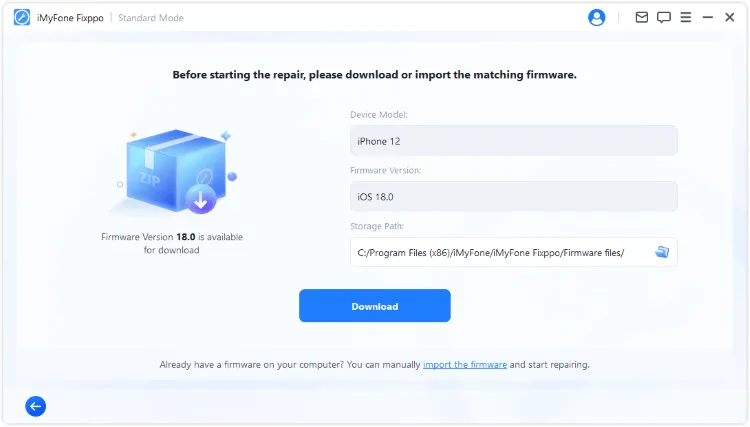
Step 3: Once the firmware is downloaded, please click the Start Standard Repair button to begin, keep your iPhone connected during the whole process.

The process takes you about 5 minutes. Later, your iPhone won't keep turning on and off. When it restarts, enter the screen passcode and you can use it as usual, all data remain safe!

You can also watch the intuitive video to fix iPhone keeps turning off and restarting.
Basic Ways to Fix iPhone Keeps Restarting
You can try the following 8 solutions when your iPhone keeps turning off and restarting. If this is an iOS system problem, the first 7 methods work for you. If nothing works, please contact Apple Support.
1 Drain iPhone Battery
If your iPhone keeps going on and off by itself suddenly, a simple trick like draining the phone's battery to recalibrate can fix this iPhone keeps turning off and back on issue. Here're two suggestions.
- Allow your iPhone's battery to get drained completely. It might take some time to do this, but you have to wait until the battery can completely discharge. Wait till the iPhone shuts down on its own.
- Plug your iPhone to power and allow it to charge fully, which may take several hours again.

2 Clear iPhone Storage
Low storage can make iOS crash during startup, especially after a major update. If the phone stays on long enough, remove large videos, unused apps, and failed update files before trying another update.

Step 1: Open Settings > General > iPhone Storage.
Step 2: Check all apps and how much storage they use.
Step 3: Delete those unused apps or files, review the photos and videos you don't want as well t free up space.
3 Offload Problematic Apps
Sometimes, a faulty app can cause your iPhone keep turning on and off. If the app is incompatible with the system, it may trigger crashes and restarts. Therefore, uninstalling problematic apps can help resolve the issue and get your iPhone run smoothly with a lower risk of data loss after backing up important data. Here’s how to do it.

4 Force Restart to Fix iPhone Turning Off and On
Force restart is worth trying because it clears a stuck startup state. If the iPhone keeps restarting immediately afterward, move to iOS repair or Apple restore.
- iPhone 5/6/SE: Simultaneously press and hold the Home + Power buttons until the screen turns black then afterward, the Apple logo shows up, then let go of the buttons.
- iPhone 7/7 Plus: Press and hold the Power button plus the Volume Down button at the same time. Release the buttons immediately after you see the Apple logo on the screen.
- iPhone 8/X/XR/11/12/13/14/15/16: Press the Volume Up button firsthand the Volume Down button and then press the Power button and hold it until the Apple logo shows up.


Fix iPhone Turning Off and On Repeatedly
Performing a force restart may temporarily stop your iPhone from random shutdowns. For potential iOS system glitches, it's recommended to fix the system so as to completely resolve the issue.
5 Update or Reinstall iOS 27
If the device stays on long enough, update to the latest iOS 27 build. If it cannot finish the update, use a computer update or repair tool rather than repeating the same failed OTA update.
Check if there is a new update for your iOS by going to Settings > General > Software Update. If there is a new update, tap to download and install it after making sure you have enough storage space.

6 Restore with Finder / Apple Devices / iTunes
To fix iPhone switching on and off, Finder / Apple Devices / iTunes can be another solution at hand. Besides using it to back up your data, it's also a tool used for restoring iPhone from iOS glitches.
Note
Please notice that Finder / Apple Devices / iTunes will wipe out all your important iPhone data once it finishes restoring your device. If you feel like trying this method, don't forget to make a full backup of all your content first.
Let's see how to fix iPhone turning off and on by itself with Finder / Apple Devices / iTunes restoring method.
Step 1: Open your Finder / Apple Devices / iTunes and update it to the latest version. Then connect your iPhone to the computer with a cable.
Step 2: Click the Summary tab, then choose Restore iPhone shown on the right screen.
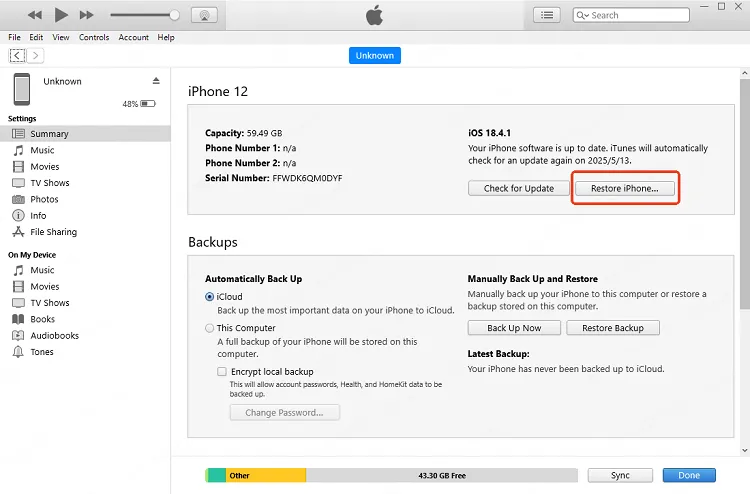
Step 3: Proceed by clicking Restore and Update. Finder / Apple Devices / iTunes will begin to download the firmmare to fix your iPhone, which will take an hour or so.

Your iPhone will be turned on once done. Now, you can restore the backup if you have. Or you have to set up the iPhone as a new one.

Tips
If Finder / Apple Devices / iTunes can't detect your iPhone, you can rapidly solve the problem with the Fix iPhone Restart Loop with a Lower-Data-Risk Repair Path; Or, you can try to put your device in recovery mode, then try Finder / Apple Devices / iTunes again to fix your iPhone that is shutting on and off.
7 Enter Recovery Mode to Fix iPhone Keeps Turning Off and On
The recovery mode, or the so-called iPhone restore screen, is a must step before trying to restore your iPhone.
If your Finder / Apple Devices / iTunes not recognizing your iPhone, which happens all the time actually, then you can try to put your iPhone enter recovery mode before using Finder / Apple Devices / iTunes to restore the device.
Here's the steps on how to enter recovery mode on iPhone and restore it with Finder / Apple Devices / iTunes.
Step 1: Open Finder / Apple Devices / iTunes again and connect your device to it.
Step 2: Follow the different steps to put your iPhone in recovery mode:
- iPhone 8/X/11/12/13/14/15/16/17 to enter recovery mode: Press the Volume Up > Volume Down button. Keep holding the Power button and wait until the recovery mode shows up.
- iPhone 7/7 Plus to get into recovery mode: Press the Volume Down button and the Power key. Release the buttons when the recovery mode appears.
- iPhone 6s or earlier to enter recovery mode: Tap and hold the Home and Power buttons simultaneously. Release then when your iPhone is in recovery mode.
Step 3: Finder / Apple Devices / iTunes will begin to respond and detect that your iPhone is in recovery mode. Click the Restore button for it to fix the iPhone turning off and on issue.

8 Contact Apple Support
Sometimes some problems can be more serious. It could be a bad battery, shortened circuits, etc. Once you realize that the iPhone keeps turning on and off problem is beyond what any of the above techniques can solve, visit the nearest Apple Store to fix your iPhone.
FAQs
Why does my iPhone keep restarting after iOS 27?
Common causes include failed update files, low storage, unstable battery health, corrupted apps, or firmware problems. Start with charge and force restart, then move to repair or restore.
Is an iPhone restart loop always a battery issue?
No. Battery damage is possible, but restart loops after an update are often software or firmware related.
When should I contact Apple Support?
Contact Apple if the iPhone overheats, restarts only while charging, has liquid damage, or still restarts after a restore.
Conclusion
When an iPhone keeps restarting, use the symptom to choose the fix. Low-risk checks come first, Fixppo or computer update fits software loops, and Apple service is the right path when power or hardware signs appear.


Melvin Cooper has over 10 years of experience in the technology industry and is an expert at providing tips and handy solutions to Apple and Android users. Dedicated to helping millions of users improve their experience with mobile devices, he has maintained an impressive record of solving problems.
-
Fix iPhone Stuck on Update Requested [iOS 18/26 Supported]
iPhone stuck on update requested? Learn why it happens and discover 8 proven solutions to get your iOS update back on normal without data loss.
3 mins read -
[2025 New] How to Stop iOS 17/18/26 Update in Progress?
How to stop iOS 17/18/26 update in progress when you feel like staying in the current iOS version? Here's how to do it via 4 methods.
3 mins read -
5 Ways for iOS 26 Beta Download [Developer & Public Beta]
How to get iOS 26 beta? Whether you want to download iOS 26 developer or public beta, you can find the suitable methods with our guide. 5 Ways here!
3 mins read -
17 Important Facebook Statistics You Should Know in 2025
Do you want to know some up-to-date Facebook statistics? We break down 17 must-know Facebook stats about demographics, engagement rate and more.
3 mins read -
[2025 Full Guide] All About iOS Update Issues and Solutions
Have you encountered different problems during or after iOS update? This article focuses on all iOS update issues and solutions. Hope you can learn from it.
5 mins read -
[Full Guide] 50+ iOS 18 Bugs and Fixes You Should Know 2025
What are some known iOS 18 bugs? Read on this article to learn everything about iOS 18 bugs and fixes.
5 mins read
Was this page helpful?
Thanks for your rating
Rated successfully!
You have already rated this article, please do not repeat scoring!