

















 Shop
Shop


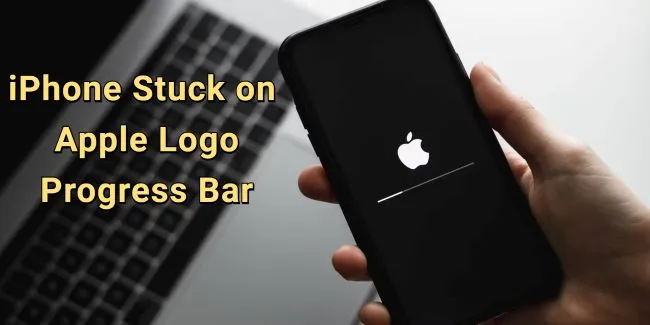
If your iPhone is stuck on the Apple logo with a progress bar, it is usually still trying to install, restore, migrate, or verify iOS. The right move depends on how long the bar has been stuck and what happened before it appeared. During an iOS 27 update or restore, interrupting the process too early can make the problem worse.

Quick answer
If the progress bar is still moving, charge the iPhone and wait. If the Apple logo progress bar has not moved for a long time, force restart once. If it returns to the same screen after an iOS 27 update, restore, migration, or downgrade attempt, use iOS system repair before erase-based restore.
In this article:

Why iPhone Gets Stuck on Apple Logo with Progress Bar
The Apple logo with progress bar appears during iOS update, restore, migration, backup restore, or erase. A slow bar can be normal, but a frozen bar usually means the process is waiting on storage, firmware verification, computer connection, battery, or system files.
- Large iOS update: New iOS versions can take longer to install, especially after major updates.
- Low storage: Not enough free space can slow or interrupt installation.
- Weak battery or charging: The iPhone may pause or fail during update if power is unstable.
- Restore interruption: Disconnecting from Finder, Apple Devices, or iTunes can leave the device stuck.
- Firmware or system issue: A failed iOS 27 update, downgrade, or restore can require system repair.
| Charge iPhone | Hard Reboot | iOS System Repair Tool | Restore | |
|---|---|---|---|---|
| Best for | Progress still moving or battery low | Temporary freeze | Update/restore failure, boot loop, stuck progress bar | Last software option |
| Data Loss |  |
|
|
 |
| When to use | First 30-60 minutes | Bar has not moved | Stuck after iOS 27 update or restore | Repair fails or device cannot boot |
How to Fix iPhone Apple Logo Progress Bar Stuck
1 Charge and Wait Safely
If the progress bar is moving, even slowly, keep the iPhone connected to power and wait. Waiting is safer than forcing a restart in this case. Large updates, encrypted data migration, and backup restore can take longer than expected.
.If the bar has not changed for more than an hour, the iPhone is hot, or it keeps restarting, continue with the next fixes.

2 Hard Reboot iPhone
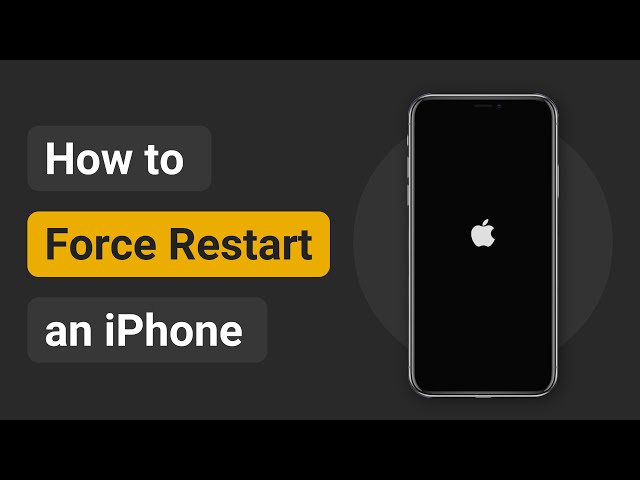
Hard reboot when the progress bar has stopped for a long time and the iPhone is not responding. On iPhone 8 or later, press Volume Up, press Volume Down, then hold the Side button until the Apple logo appears.

- For iPhone 8/X/11/12/13/14/15/16/17: Quickly press and release the Volume Up > Volume Down buttons. Hold down the Power button and wait for the Apple logo to appear.
- For iPhone 7/7 Plus: Press and hold the Volume Down button and the Side buttons together. Release them when the Apple logo appears.
- For iPhone 6s or earlier versions: Tap and hold the Home and Sleep/Wake/Side buttons at the same time. Let them go when you see the Apple logo shows up normally.
3 Repair iOS with Fixppo
If the Apple logo progress bar returns after force restart, the install or restore process may be damaged. iMyFone Fixppo is a strong fit for this exact stage because the iPhone is not fully dead; it is stuck while iOS is trying to finish an update, restore, migration, or downgrade.
Fixppo gives you a guided repair workflow with firmware detection, backup support, and Standard Mode before you decide whether a full restore is necessary.

Fix iPhone Stuck on Progress Bar:
- Update/restore repair: Fix progress-bar stuck cases after iOS update, restore, migration, or downgrade attempts.
- No data loss: Keep your data intact while repairing.
- High Success Rate: Easily fix iPhone stuck on Apple logo loading bar with 99% success rate.
- Related symptoms: Also helps with Apple logo, recovery mode, boot loop, black screen, and over 150 iOS/iPadOS issues.
- Wide Compatibility: Compatible with latest iPhone models and all iOS versions (iPhone 15/16/17 & iOS 18/26/27).
Step 1. Open Fixppo on your computer, connect your phone to the device, and choose Apple System Repair.

Step 2. Choose Standard Mode, which will keep all your iPhone data when repairing.

Step 3. Download firmware and start repair.
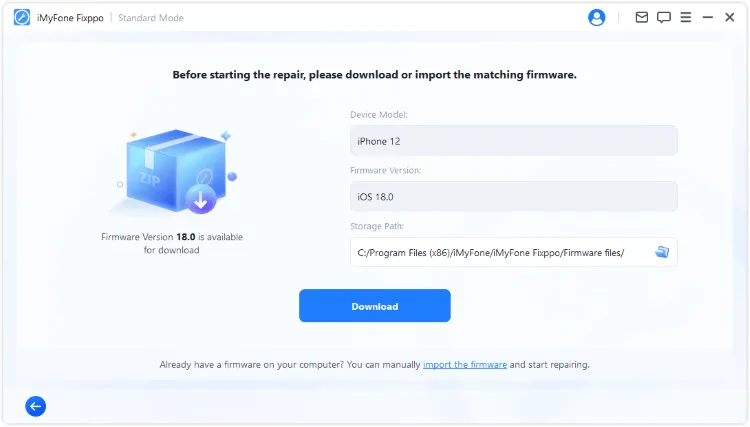
Step 4: When everything is ready, click the Start Standard Repair for Fixppo to begin fixing your iPhone stuck on progress bar during update issue.
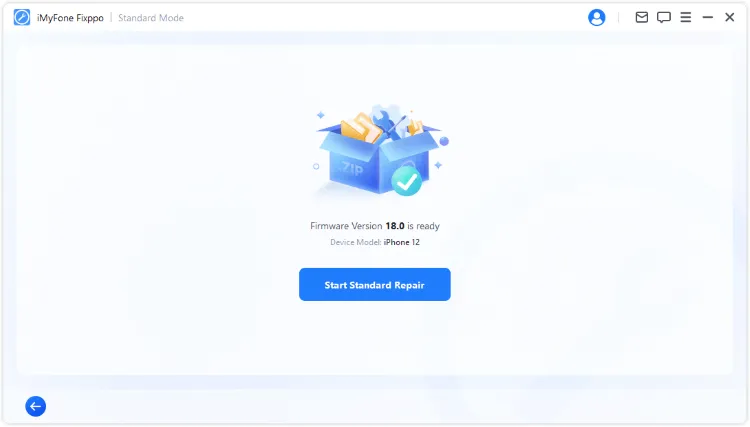
It won't take long to finish. When it's done, you can go check your iPhone's status. You can then update or restore iPhone normally without interruptions.

Watch video guide to fix Apple logo progress bar not moving:
4 Restore with Finder, Apple Devices, or iTunes
If repair does not work, restore with a computer. Use Finder on macOS, Apple Devices on newer Windows setups, or iTunes on older systems. Restore can erase the device, so back up first if you can.
Step 1: Connect your iPhone to the computer and launch iTunes. If you're using macOS Catalina or the higher version of macOS, you may need to open Finder.
Step 2: Click the Summary from the left side, then choose Restore iPhone on the right.

Step 3: Click the Restore button. Once confirmed, iTunes will begin to erase your iPhone and fix the iPhone update screen stuck issue.
5 Restore in Recovery Mode
Recovery Mode is useful when the iPhone cannot boot past the progress bar and the computer does not offer a normal update path. Choose Update first if available. Choose Restore only when you understand it can erase the device.
Step 1: Connect your iPhone to the computer and open iTunes.
Step 2: Follow steps here to put different iPhone models in recovery mode:
- For iPhone 8/X/11/12/13/14/15/16/17: Press the Volume Up > Volume Down keys. Keep holding the Power button and wait until you've connected to recovery mode.
- For iPhone 7/7 Plus: Press the Power button and the Volume Down key. When the recovery mode appears, release the buttons.
- For iPhone 6s or earlier versions: Tap and hold the Home and Sleep buttons simultaneously. Release them when the "connect to PC" or "connect to iTunes" logo shows up on your iPhone.
Step 3: When your iPhone is detected in recovery mode by iTunes, it will notify you and ask you to restore the iPhone. Click the Restore button.

Step 4: The restoring process will be updated on the top right. Once done, your iPhone will restart and you can get a brand new iPhone without stucking on the Apple logo with loading bar.

iMyFone Fixppo
Using iTunes to restore your iPhone is a great option, but it will cause all data loss. To keep all your iPhone data, Fixppo serves as a better choice.
Tips to Avoid Progress-Bar Update Failure
- Keep the iPhone charged during updates, restores, and data transfer.
- Free up storage before major iOS updates.
- Use stable Wi-Fi and avoid interrupting firmware download.
- Do not disconnect the iPhone during Finder, Apple Devices, or iTunes restore.
- Back up before iOS 27 update, downgrade, or device migration.
FAQs
1 What does Apple logo with progress bar mean?
It means the iPhone is installing, restoring, migrating, or verifying iOS data. A moving bar can be normal; a frozen bar means the process may be stuck.
2 How long should I wait?
If the bar moves, wait and keep the iPhone charged. If it does not move for more than an hour or the device keeps restarting, start troubleshooting.
3 Can I recover without erasing?
Sometimes. Force restart, computer Update, and Fixppo Standard Mode are lower-data-risk paths. Full Restore and DFU restore can erase the iPhone.
Conclusion
An iPhone stuck on Apple logo with progress bar is usually an update, restore, or migration failure. Wait if the bar is moving, force restart if it is frozen, try Fixppo when the iOS process is damaged, and save computer restore or Recovery Mode for cases where repair cannot complete.


Melvin Cooper has over 10 years of experience in the technology industry and is an expert at providing tips and handy solutions to Apple and Android users. Dedicated to helping millions of users improve their experience with mobile devices, he has maintained an impressive record of solving problems.
-
Fix iPhone Stuck on Update Requested [iOS 27 Supported]
iPhone stuck on update requested? Learn why it happens and discover 8 proven solutions to get your iOS update back on normal without data loss.
3 mins read -
[2025 New] How to Stop iOS 17/18/26 Update in Progress?
How to stop iOS 17/18/26 update in progress when you feel like staying in the current iOS version? Here's how to do it via 4 methods.
3 mins read -
5 Ways for iOS 26 Beta Download [Developer & Public Beta]
How to get iOS 26 beta? Whether you want to download iOS 26 developer or public beta, you can find the suitable methods with our guide. 5 Ways here!
3 mins read -
17 Important Facebook Statistics You Should Know in 2025
Do you want to know some up-to-date Facebook statistics? We break down 17 must-know Facebook stats about demographics, engagement rate and more.
3 mins read -
[2025 Full Guide] All About iOS Update Issues and Solutions
Have you encountered different problems during or after iOS update? This article focuses on all iOS update issues and solutions. Hope you can learn from it.
5 mins read -
[Full Guide] 50+ iOS 18 Bugs and Fixes You Should Know 2025
What are some known iOS 18 bugs? Read on this article to learn everything about iOS 18 bugs and fixes.
5 mins read
Was this page helpful?
Thanks for your rating
Rated successfully!
You have already rated this article, please do not repeat scoring!