

















 Shop
Shop


If you need to remove Apple ID from a locked iPhone, first confirm what "locked" means on your screen, a forgotten screen passcode or an Activation Lock after erase.
This guide explains how to remove Apple ID from iPhone when it's locked, what to try for your own account, and when a previous owner or Apple Support is the only legitimate path.

In this article:
- Check Which Lock Is Blocking the iPhone
- Remove Apple ID from a Locked iPhone without Password

- Restore the iPhone with Finder, Apple Devices, or iTunes
- Reset the Apple Account Password
- Find a Forgotten Apple Account Email
- Ask the Previous Owner to Remove the Device
- Contact Apple Support with Proof of Purchase
- Avoid Common Mistakes Before You Unlock or Erase
- FAQs About Removing Apple ID from Locked iPhone

Quick answer
If the iPhone is locked by a screen passcode, remove the screen lock first and then sign in with the Apple Account that belongs to the device. If the iPhone shows Activation Lock, software cannot replace ownership verification. Only use unlock methods on a device you own or are authorized to unlock.
Check Which Lock Is Blocking the iPhone
Many failed attempts start because the user chooses an Apple ID removal method for the wrong lock screen. Spend one minute identifying the message on the iPhone before downloading software or erasing the device.
| What you see | What it usually means | Best next step |
|---|---|---|
| Lock Screen asks for a passcode | The device screen is locked. | Use the passcode, perform a recovery restore, or use a screen unlock tool. |
| You can open the iPhone but cannot sign out of Apple Account | The Apple Account password is missing or account settings are restricted. | Reset the Apple Account password or use a supported Apple ID removal tool. |
| Activation Lock asks for the previous owner's Apple Account | The device is protected by Find My Activation Lock. | Ask the previous owner to remove the device from their account, or contact Apple with valid proof of purchase. |
| Remote Management or MDM appears during setup | The iPhone is managed by an organization. | Contact the organization or use an authorized MDM removal workflow if you have permission. |
Remove Apple ID from a Locked iPhone without Password
Watch how to remove Apple ID from locked iPhone without password
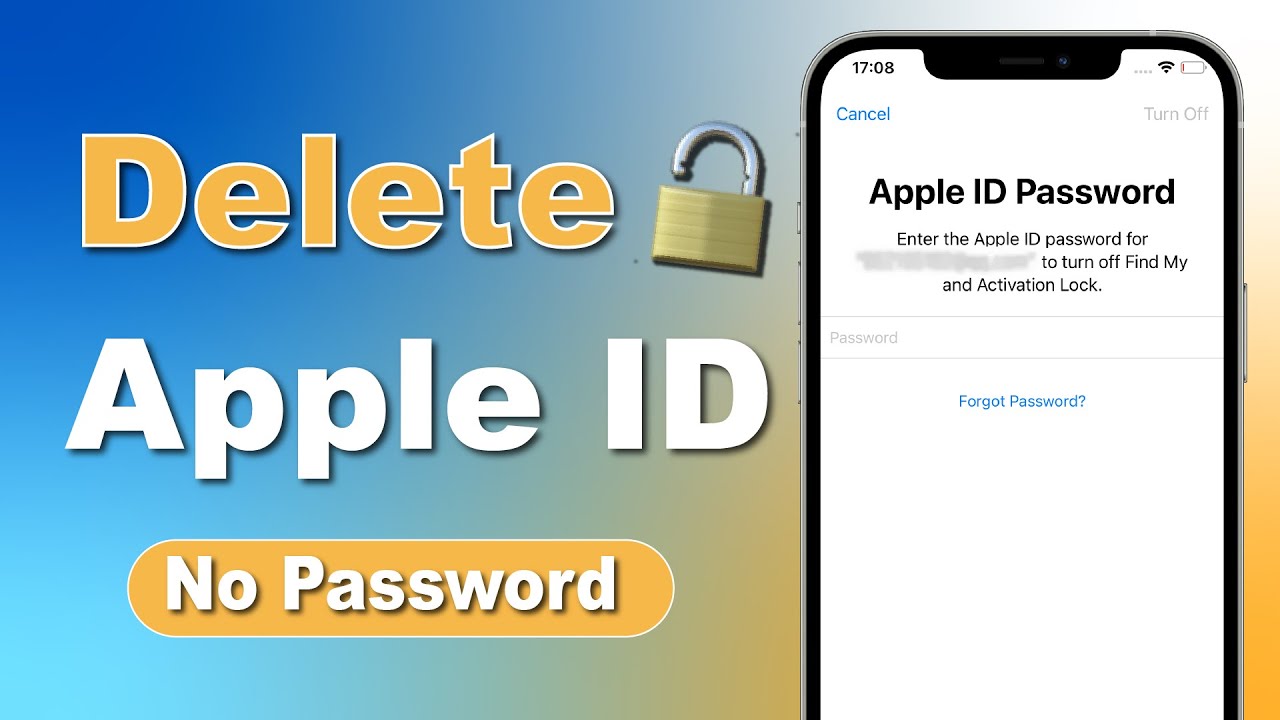
If you don't remember the screen password for the iPhone, iMyFone LockWiper is worth trying. It is especially useful when the problem is not just "I forgot a password," but "I need a clear path through Apple Account removal, screen lock removal, or another iPhone lock screen."

Why use LockWiper for Apple ID removal?
- It helps remove Apple ID without username or password or when the phone is unavailable.
- No iTunes/iCloud/Credentials needed to unlock Apple ID without phone number/email/iTunes/iCloud.
- Also supports common iPhone lock scenarios such as screen passcode, Face ID, Touch ID, Screen Time passcode, and MDM-related locks.
- Shows device-status instructions during the process so you can confirm whether your case is supported before continuing.
How to remove Apple ID from iPhone when it's locked using LockWiper.
1 Choose Unlock Apple ID
Open LockWiper and choose Unlock Apple ID. This route is for Apple Account removal scenarios, not for guessing or revealing the account password.

2 Connect the iPhone and Start
Connect the iPhone to the computer and follow the on-screen instructions. Keep the cable connected and avoid switching methods halfway through.

3 Follow the Device-Status Instructions
LockWiper may ask you to confirm the device status or reset settings before continuing. Read these instructions carefully because Find My status and activation state decide which route is available.
If Find My is turned off, LockWiper will automatically remove Apple ID from your locked iPhone. Wait for a few minutes for the process to complete.

If Find My is on and your device is running iOS 11.4 and above, you need to check if your screen passcode and the two-factor authentication are turned on. If not, follow the on-screen instructions to enable them. Then, click Unlock button.

Then, follow the prompt to enter 000000 and click Unlock button again.

4 Set Up the iPhone Again
After the process finishes, set up the iPhone with your own Apple Account. If you meet Activation Lock during setup, do not keep retrying random account details; use the previous-owner or Apple Support route below.

Restore the iPhone with Finder, Apple Devices, or iTunes
If the issue begins with a forgotten screen passcode, restoring the iPhone from a computer can remove the screen lock. On macOS, use Finder. On newer Windows setups, use Apple Devices. On older Windows computers, iTunes may still be used.
This route can erase the iPhone, and after restore you still need the Apple Account linked to the device if Find My was enabled. It is helpful for a screen passcode problem, but it will not remove Activation Lock by itself.
- Connect the iPhone to your computer with a USB cable.
- Put the iPhone into recovery mode using the button sequence for your model.
- Open Finder, Apple Devices, or iTunes and choose Restore when the restore option appears.
- After restore, set up the iPhone and sign in with the Apple Account that belongs to the device.

Reset the Apple Account Password
If the Apple ID is yours but you forgot the password, reset the account password before trying to remove the account. This is the cleanest route when you can verify ownership through a trusted phone number, trusted device, recovery contact, or recovery key.
- Go to iforgot.apple.com.
- Enter your Apple Account email or phone number.
- Confirm the recovery information Apple asks for.
- Use a trusted device or recovery option to set a new password.
- Return to the iPhone and sign out or finish setup with the new password.


Find a Forgotten Apple Account Email
Sometimes the password is not the only problem; you may not remember which Apple Account was used on the iPhone. Before you erase the device, check other Apple devices, email inboxes, and family records for the account email or phone number.
You can also use Apple's account lookup page by entering your name and possible email addresses. This will not remove a lock, but it can point you to the correct account to recover.

Ask the Previous Owner to Remove the Device
For a second-hand iPhone that shows Activation Lock, the fastest legitimate solution is usually the previous owner. They do not need to give you their Apple Account password. They can remove the iPhone from their account remotely.

Apple ID Removal
If you can't acquire the Apple ID password, you won't be able to use this iCloud method. In that case, LockWiper can solve this problem without needing any password.
- Ask the previous owner to visit iCloud.com/find or the Find My app.
- Have them select the iPhone from their device list.
- They should erase the device if needed, then choose Remove from Account.
- Restart the iPhone and go through setup again.


Second-hand iPhone tip
If the seller cannot remove the iPhone from their Apple Account, pause the purchase or request a refund. A device that remains tied to another account may not be usable as your own iPhone.
Contact Apple Support with Proof of Purchase
If you are the rightful owner and cannot reach the previous owner, Apple Support may be able to help after reviewing proof of purchase. Be ready to provide the serial number, IMEI, original receipt, and any details that show the device belongs to you.
This route is slower than a password reset or previous-owner removal, but it is the correct path for Activation Lock when ownership needs to be verified.


Avoid Common Mistakes Before You Unlock or Erase
Apple ID removal becomes harder when users jump between methods without checking the lock type first. The wrong route can erase data, lead to another setup screen, or leave the iPhone asking for the same Apple Account again.
- Do not confuse screen passcode removal with Apple ID removal. A screen passcode workflow can help you get past the Lock Screen, but it does not prove ownership of the Apple Account tied to Find My.
- Do not erase a second-hand iPhone before checking Activation Lock. If the seller's Apple Account is still attached, erasing the iPhone may simply move the problem from the Home Screen to the setup screen.
- Do not keep entering random Apple Account passwords. Repeated failed attempts can delay recovery and make it harder to understand which account is actually linked to the device.
- Do not share your device details with unknown unlock pages. If a page cannot explain supported lock types, refund terms, or ownership requirements, treat it as high risk.
For your own iPhone, start with Apple Account recovery and trusted-device checks. For a used iPhone, ask the seller to remove it from Find My before you finish the purchase. For a locked screen on a device you are authorized to unlock, use a clear passcode or Apple ID removal workflow and follow the device-status instructions carefully.
FAQs About Removing Apple ID from Locked iPhone
Can I remove Apple ID from iPhone without password for free?
If the Apple Account is yours, try Apple's password reset and account recovery first. If the iPhone is Activation Locked to another account, free tricks will not replace the owner's removal or Apple's proof-of-purchase review.
Can I remove Apple ID from an unactivated device?
If the device is not activated and shows Activation Lock, normal Apple ID removal software is not the right route. You need the Apple Account owner to remove the device or Apple to verify ownership.
Does restoring iPhone remove Apple ID?
Restoring can remove the screen passcode and erase local data, but it does not automatically remove Activation Lock. If Find My was enabled, setup may still ask for the linked Apple Account.
Is LockWiper useful if I bought a used iPhone?
It can be useful for supported screen lock or Apple Account removal cases on a device you are authorized to unlock. If the used iPhone is Activation Locked to the seller's Apple Account, ask the seller to remove it from their account first.
Conclusion
Removing Apple ID from a locked iPhone depends on the lock in front of you. For your own Apple Account, reset the password first. For a forgotten screen passcode or supported Apple ID removal case, LockWiper can provide a clearer desktop workflow. For Activation Lock, focus on ownership removal through the previous owner or Apple Support instead of chasing shortcuts.


Melvin Cooper has over 10 years of experience in the technology industry and is an expert at providing tips and handy solutions to Apple and Android users. Dedicated to helping millions of users improve their experience with mobile devices, he has maintained an impressive record of solving problems.
-
[2025] How to Use iforgot.apple.com Unlock Apple ID?
iforgot.apple.com can unlock Apple ID and reset Apple ID password. Let's see how it works to help you regain control of your device.
3 mins read -
How to Use 3uTools MDM Bypass & Its Alternatives [ 2026 ]
How to use 3uTools MDM bypass tool? This article gives a full review of how to bypass MDM with 3uTools and its best alternatives as well.
3 mins read -
What Is iOS 18 iPhone Inactivity Reboot Feature? How Does It Work?
Do you know the feature of iPhone inactivity reboot after 3 days in iOS 18.1? What is it and how does it work? This article tells you all!
2 mins read -
[2026] 4 iPad Unlock Software [Free Way Included]
Looking for solutions to unlock ipad for free? This post introduce 4 ipad unlock software,including the free ipad unlock tool to you. Check it out!
4 mins read -
[2025] What Is iOS Account Manager & How to Remove It
What is iOS Account Manager? Can I remove it? This guide will explain what does iOS Account Manager mean and provide steps for you to remove it with ease.
3 mins read -
How to Fix This Apple ID Is Not Valid or Supported
This guide focuses on explaining and resolving why this apple id is not valid or not supported issues to help you fix Apple ID not working on iPhone problems.
3 mins read
Was this page helpful?
Thanks for your rating
Rated successfully!
You have already rated this article, please do not repeat scoring!