
















 Shop
Shop



iMyFone LockWiper
Instantly remove MDM/remote management lock from iPhone/iPad without username or password. Safe & effective!
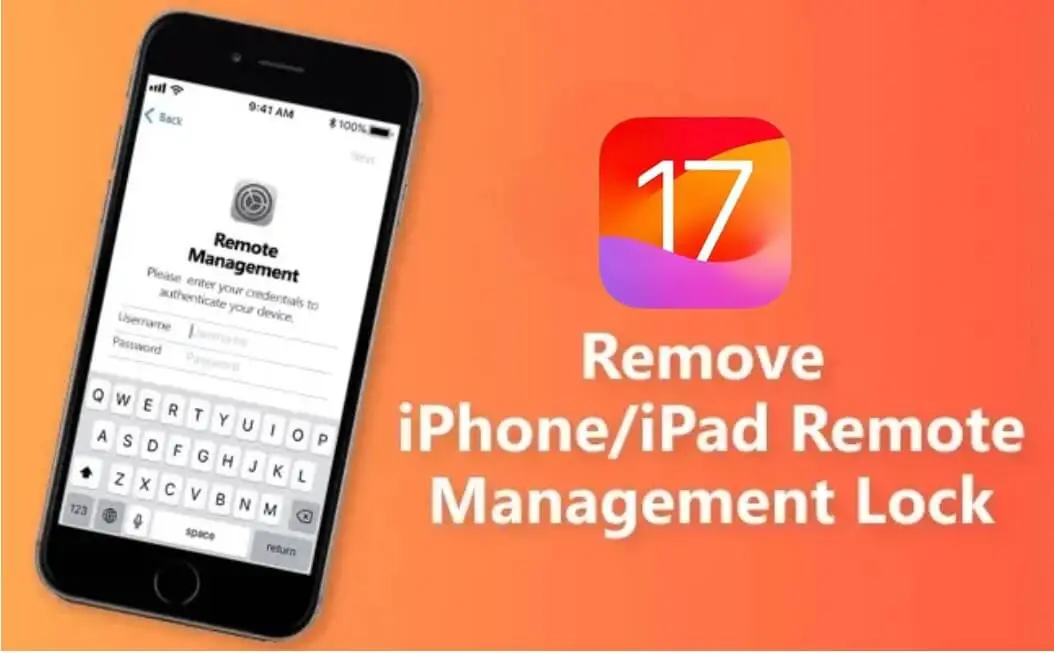
Remote Management on iPhone or iPad means the device is controlled by an organization through MDM. It can appear during setup, inside Settings, or after a factory reset.
This guide is a 2026 update for how to remove remote management from iPhone or iPad, including setup-screen MDM, supervised devices, "remote iCloud quota UI" searches, and free admin-based removal.

Quick answer
If the device is yours and you cannot get the old MDM credentials, LockWiper can help remove remote management in supported authorized cases. A factory reset may erase the device but still bring Remote Management back during setup.
In this article:

What Is Remote Management on iPhone/iPad?
Remote Management is part of MDM (Mobile Device Management). It lets an organization configure Wi-Fi, VPN, email, apps, security rules, restrictions, and setup settings without physically handling the device. On a supervised device, the administrator can also prevent users from removing the profile.
- Remote Management is normal on school, work, retail, and organization-owned devices.
- If it appears after a reset, the device may still be assigned through Apple Business Manager or Apple School Manager.
- If the device is yours, the goal is to remove the old management record without confusing it with Activation Lock or Apple Account issues.
How to Remove Remote Management Without Password
Watch the video below on how to remove remote management lock from iPhone/iPad.
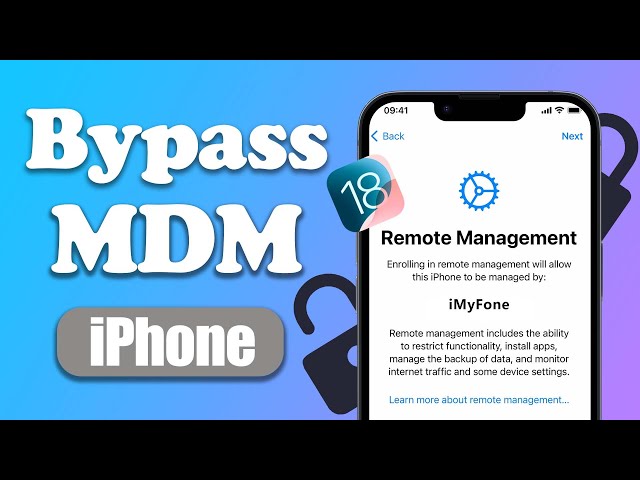
iMyFone LockWiper is an efficient solution to MDM removal. This is the most direct path when Remote Management blocks setup and a normal Settings removal is not available. It can bypass MDM on iPhone or iPad in 5 minutes. No technical skills required.
LockWiper MDM Removal Tool
- No old MDM credentials needed: Helps with Remote Management screens. No username or password needed.
- Two screen states covered: Provides different unlock modes for setup-screen Remote Management and accessible-device MDM cases.
- iPhone and iPad workflow: Designed for common iPhone/iPad MDM restrictions, including supervised-device scenarios.
- Clear lock-type separation: Helps avoid mixing MDM with Activation Lock, Apple Account, or screen passcode problems.
- Multi-Purpose: Also help remove Apple ID and other locks to access all features again.
- Broad Compatibility: Supports all types of iPhone and iPad devices running OS 27.
Steps on how to remove remote management from iPad/iPhone without password.
Step 1: Install LockWiper and choose Bypass MDM.
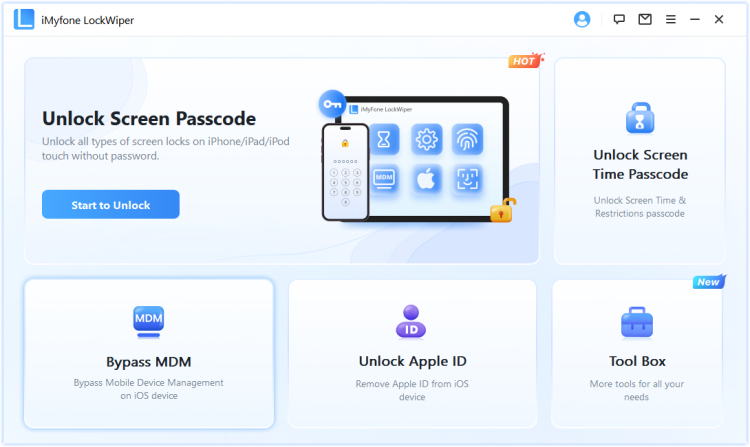
Step 2: Select the option that matches the screen. A setup-screen Remote Management case is different from an iPhone or iPad you can already open.
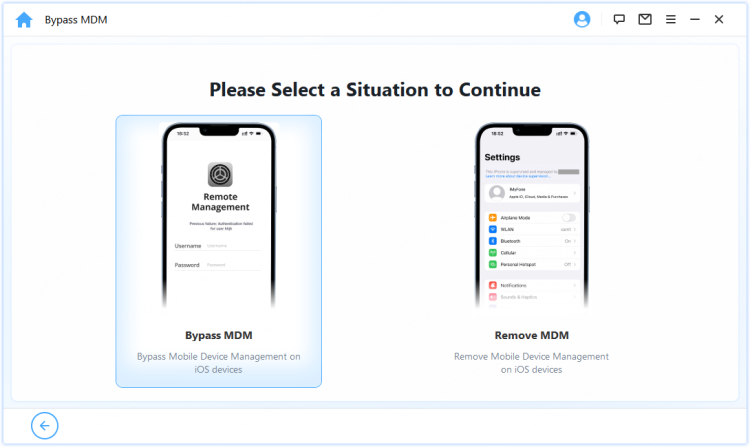
Step 3: Start the removal process and keep the device connected. Do not unplug the device while it is changing state.
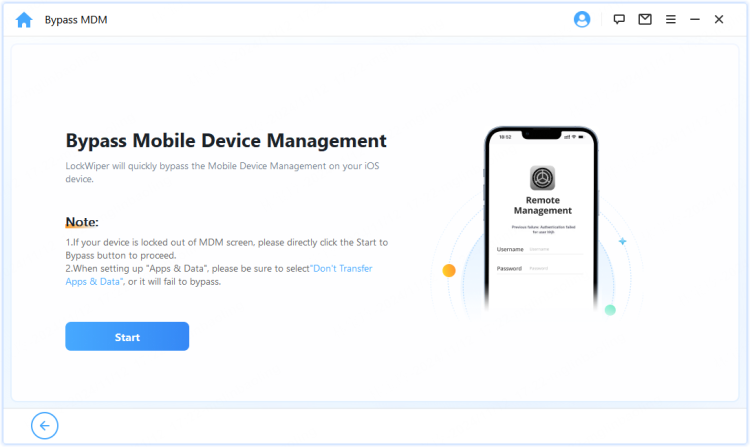
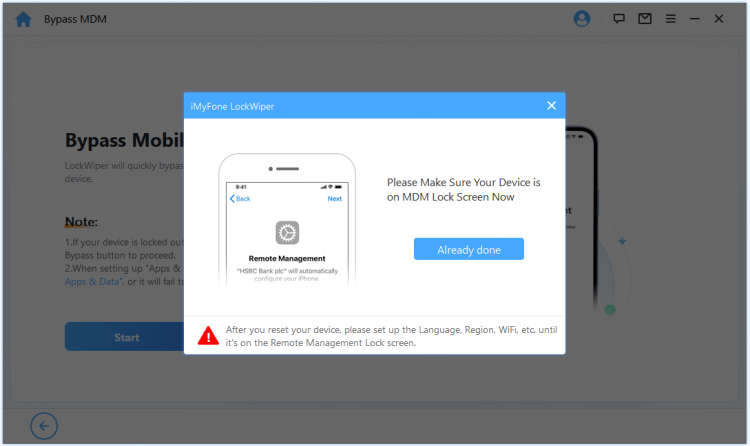
Step 4: Confirm the screen state if prompted, then finish the workflow and check whether Remote Management returns after restart.
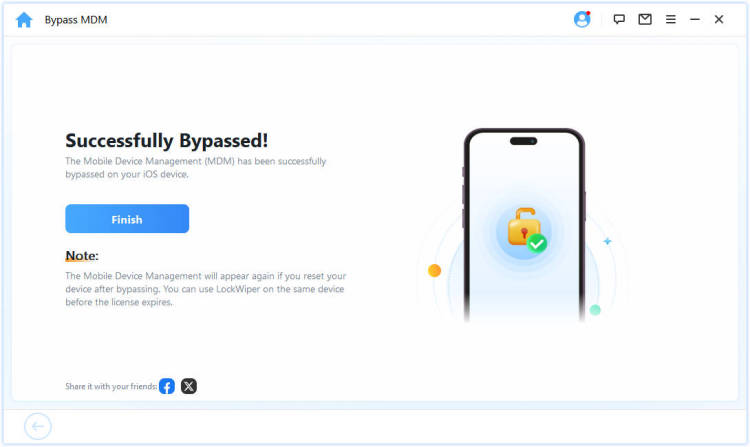
You can start using your device without any MDM restrictions or supervision.

Tips
If you need to reset the device after bypassing the MDM, the device will be locked in the remote management screen again. In that case, you can still bypass MDM using LockWiper.
Free Ways to Remove Remote Management
The free routes are worth trying first when you have the right credentials or admin access. They are cleaner because they remove the management record at the source instead of only handling the device side.
1 Ask the Administrator to Release the Device
For a company, school, carrier, or reseller device, the administrator can remove the device from MDM and Apple Business Manager / Apple School Manager. This is the best answer when the device is still owned by an organization.
2 Remove the MDM Profile in Settings
If the device opens normally, go to Settings > General > VPN & Device Management, select the management profile, and tap Remove Management. If no remove button appears, the profile may be non-removable or supervised.
iMyFone LockWiper The "Settings" method may fail if you cannot find the remote management profile. To bypass remote management on iPhone/iPad easily, feel free to try LockWiper to remove the MDM lock without password.

3 Factory Reset
A factory reset can erase local content, but it may not remove Remote Management. If the device is still assigned to an organization, the same Remote Management screen can return during setup.
How to Tell If iPhone/iPad Is Remotely Managed
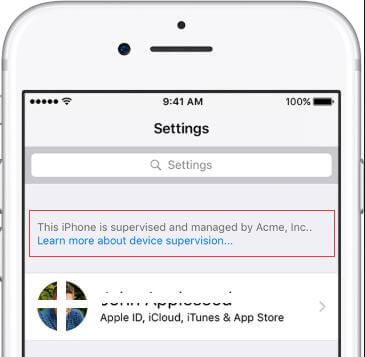
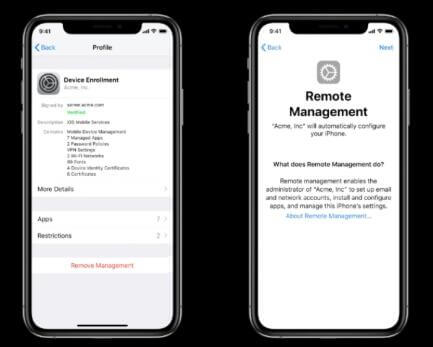
Remote Management can appear in more than one place. Check these signs before choosing a removal method:
- Setup screen: The device says it will be managed by an organization before you can finish setup.
- Settings notice: Settings shows that the device is supervised or managed.
- VPN & Device Management: A profile appears under General with organization details.
- Restrictions: App installation, account changes, passcode settings, or network settings are blocked.
FAQs About Remote Management
1 Can Remote Management be used to track my iPhone?
An organization may be able to enforce settings, install apps, apply restrictions, and see managed-device information depending on its MDM policy. A personal second-hand device should not remain under someone else's management.
2 How do I remove Remote Management from iPhone during setup?
Ask the organization or seller to release it first. If the device is legally yours and release is not available, use an authorized MDM removal workflow such as LockWiper.
3 What is remote iCloud quota UI?
Users often use this phrase when they see a confusing setup or account-management screen. Check whether the actual screen says Remote Management, iCloud, Apple Account, or Activation Lock; each one needs a different fix.
4 Does reset remove Remote Management?
Not always. Reset erases local data, but organization assignment can return during setup.
5 Can I remove management from a school iPad?
If the iPad belongs to the school, ask the school administrator. If it was legally released to you, ask them to remove the device from their MDM and Apple School Manager records.
Conclusion
Remote Management is not just a screen to skip. It is a sign that the device may still be managed by an organization. To remove Remote Management from an iPhone or iPad, use admin release when possible, try Settings removal when the profile is removable, and use iMyFone LockWiper for supported MDM removal on a device you own or are authorized to manage.


Melvin Cooper has over 10 years of experience in the technology industry and is an expert at providing tips and handy solutions to Apple and Android users. Dedicated to helping millions of users improve their experience with mobile devices, he has maintained an impressive record of solving problems.
-
[2025] How to Use iforgot.apple.com Unlock Apple ID?
iforgot.apple.com can unlock Apple ID and reset Apple ID password. Let's see how it works to help you regain control of your device.
3 mins read -
How to Use 3uTools MDM Bypass & Its Alternatives [ 2026 ]
How to use 3uTools MDM bypass tool? This article gives a full review of how to bypass MDM with 3uTools and its best alternatives as well.
3 mins read -
What Is iOS 18 iPhone Inactivity Reboot Feature? How Does It Work?
Do you know the feature of iPhone inactivity reboot after 3 days in iOS 18.1? What is it and how does it work? This article tells you all!
2 mins read -
[2026] 4 iPad Unlock Software [Free Way Included]
Looking for solutions to unlock ipad for free? This post introduce 4 ipad unlock software,including the free ipad unlock tool to you. Check it out!
4 mins read -
[2025] What Is iOS Account Manager & How to Remove It
What is iOS Account Manager? Can I remove it? This guide will explain what does iOS Account Manager mean and provide steps for you to remove it with ease.
3 mins read -
How to Fix This Apple ID Is Not Valid or Supported
This guide focuses on explaining and resolving why this apple id is not valid or not supported issues to help you fix Apple ID not working on iPhone problems.
3 mins read
Was this page helpful?
Thanks for your rating
Rated successfully!
You have already rated this article, please do not repeat scoring!