

















 Shop
Shop
[2026] How to Recover Permanently Deleted Videos on iPhone
Category: iOS Data Recovery

3 mins read
Summary: This post covers every method that works for how to recover permanently deleted videos from iPhone without backup — and the one rule that decides which method applies to you.
Accidentally deleted important videos on your iPhone and lost them for good? Or lost them to an iOS update, a crash, or a factory reset? One thing decides whether you get them back: whether a backup was made before the video was deleted. A backup created afterwards cannot contain it, no matter how recently you restored your phone. If you are wondering how to retrieve deleted videos on iPhone, this post covers every method that works, in the order you should try them.
In this article:
- Part 1. Can I Recover Permanently Deleted Videos from iPhone?
- Part 2. How to Recover Permanently Deleted Videos from iPhone with D-Back

- Part 3. How to Recover Deleted Videos on iPhone for Free
- Option 1. Retrieve Deleted Videos from iCloud Backup
- Option 2. Recover Deleted Videos from iTunes Backup
- Part 4. How to Back up iPhone Videos for Free
- Part 5. FAQ about iPhone Video Recovery
Part 1. Can I Recover Permanently Deleted Videos from iPhone?
Can I recover deleted videos from iPhone 18/17/16/15/14?
Most likely, yes. Deleted videos are not erased from the storage chip straight away — the reference to them is removed and the space is marked as available, so the data survives until something new is written over it. What decides your odds is one of two things: the 30-day Recently Deleted window, or a backup that predates the deletion.
Here is a video guide to help you quickly retrieve deleted videos on iPhone.
Where Deleted Videos Go on iPhone
Deleted videos move to a temporary holding area called the "Recently Deleted" album within the Photos app. It acts like a recycling bin: the videos stay recoverable for 30 days, after which they are permanently removed and you need a backup or a professional recovery tool to get them back.
Videos deleted inside other apps — WhatsApp, Files, a messaging app — do not go here. They follow that app's own rules and are usually gone immediately.
Start Here: the Recently Deleted Album (Within 30 Days)
- Open the Photos app, tap Albums, scroll down to Utilities and tap Recently Deleted.
- Tap the video to preview it, then tap Recover. To restore several at once, tap Select first.
- If the album seems to be missing, it may be locked behind Face ID — scroll to the very bottom of the Albums list and unlock it.
- Don't tap "Delete All." It purges everything immediately and permanently, skipping the remaining days.
If your phone is lost or broken, the same album is available in a browser at icloud.com/photos > Recently Deleted, with the same 30-day clock.
The Rule That Decides Everything Else

Remember This
A backup can only contain your video if it was created before the video was deleted. A backup made after the deletion does not have it, and restoring it will not bring the video back.
Automatic iCloud Backup runs roughly every 24 hours, so if you deleted the video three days ago and your phone has been backing up since, your current backup almost certainly does not have it. Check the date under Settings > [your name] > iCloud > Manage Account Storage > Backups and compare it to when you deleted the video.
| Your situation | What works |
|---|---|
| Deleted within the last 30 days | Recently Deleted album — free, near-certain |
| Deleted over 30 days ago, with a backup from before then | Restore an iCloud or iTunes/Finder backup (Part 3) |
| Deleted over 30 days ago, and every backup is newer | D-Back device scan (Part 2) |
| No backup at all | D-Back device scan (Part 2) |

iMyFone D-Back Data Recovery Expert
Safely & effectively restore your deleted videos from iPhone without a backup
Part 2. How to Recover Permanently Deleted Videos from iPhone with D-Back
Though a permanently deleted video is recoverable, it can be an annoyance when there's no backup file available. The deleted videos are retained in your iPhone and keep invisible before getting replaced by new data. Thus, a professional data recovery software is needed to extract them.
iMyFone D-Back is a dependable iPhone data recovery tool that allows you to retrieve deleted videos from your iPhone camera roll even after 30 days. Besides, you can choose to show only the deleted videos after the scan so that you can clearly view them. It is also the only method left when no backup exists.

Key Features:
- It's capable of recovering the permanently deleted videos directly from iPhone/iPad/Mac — no backup required.
- It only charges for the recovery - free to scan and preview the deleted videos.
- It supports almost all iOS devices and iOS versions, including iOS 27.
- It can also read iCloud and iTunes/Finder backups, so you can check whether a video is inside a backup before overwriting your phone with it.
- The new AI video repair feature helps you easily fix corrupted videos, photos, and files.
- Recognized by Cult of Mac, which reviewed the tool independently.
Steps to Retrieve Deleted Videos from iPhone with D-Back
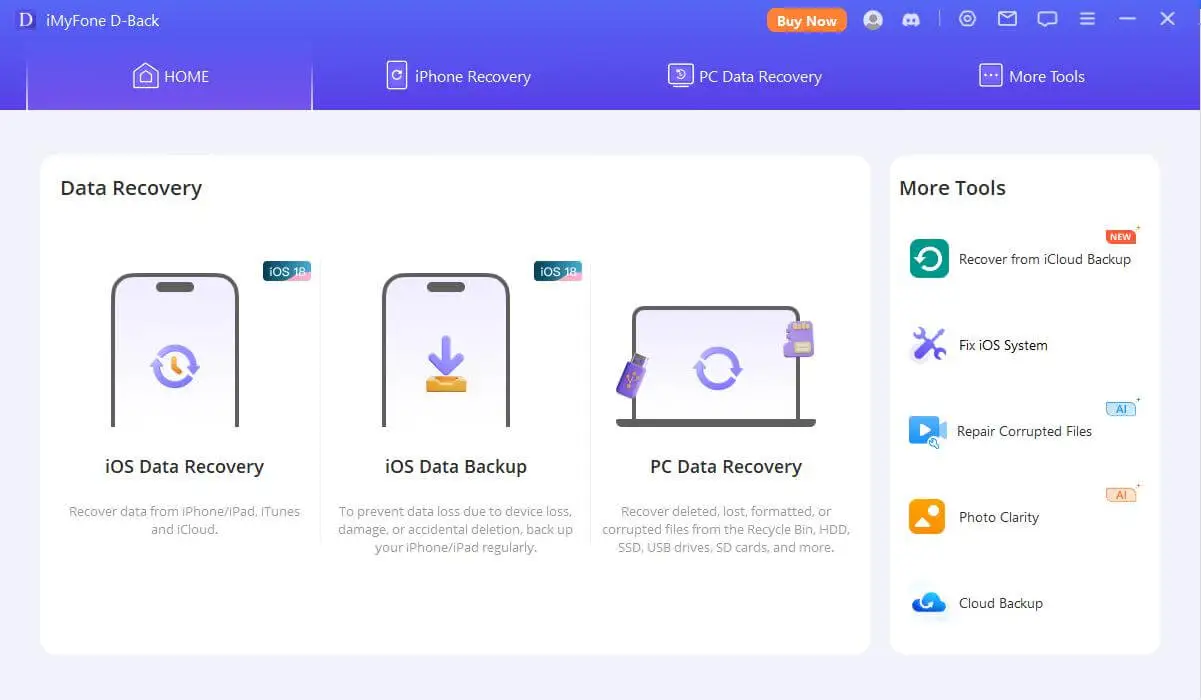
Step 1. Launch D-Back Program
After downloading the data recovery tool on your PC, launch it then select "iPhone Recovery" mode. Click on "Start".
Step 2. Connect Your Device
Connect your iPhone to the computer and trust it when prompted. You can choose to recover from the device — or pick the iCloud/iTunes backup route if you would rather inspect a backup first.
Step 3. Select File Types and Scan
The program will detect your device if it's connected to the computer. Select the type of files you want to retrieve, then click "Scan".

Step 4. Preview and Recover Your Deleted Files
When the scan is completed, turn on "show only the deleted files" to focus on what was lost, and preview them. Once you've selected what you want, hit "Recover" and choose where to save the files.


Tips
A fair word on success rates: iPhone storage uses APFS and hardware-backed encryption, which makes deep scanning harder than on a traditional hard drive. Recovery immediately after deletion has a good chance of success; weeks later, on a phone in daily use, the odds drop substantially. No tool can promise a specific success rate.

Note
To retrieve lost data, you must stop using the device after the data is lost as new data written to the device overwrites lost data and makes it unrecoverable. No new videos, no app installs, no software updates — and if you can, put the phone in airplane mode until you have run the scan.
Part 3. How to Recover Deleted Videos on iPhone for Free
Another approach to recover permanently deleted videos on iPhone is by utilizing your iCloud backup and iTunes backup. However, a key requirement for this method is that you must have previously backed up your phone, and the backup must be older than the deletion. Also note that everything currently on your phone is replaced by the backup's contents.
Option 1. Retrieve Deleted Videos from iCloud Backup
Critical, and Widely Misunderstood
If iCloud Photos is turned on, your photos and videos are stored in iCloud Photos, and iCloud Backup deliberately does not duplicate them. Restoring an iCloud Backup then brings back messages, app data and settings — not your videos. To check which system you are in: Settings > [your name] > iCloud > Photos. If "Sync this iPhone" is on, the video has to come back through the iCloud Photos route (Recently Deleted, or icloud.com/photos) instead.
Here's how to restore your iPhone from an iCloud backup:
Step 1. Make a backup of your current device first, if you can. A restore replaces everything on the phone, and anything created since the backup date will be gone.
Step 2. Confirm a suitable backup exists: Settings > [your name] > iCloud > Manage Account Storage > Backups. Note its date and size, and check that the date is older than the deletion.

Step 3. Go to Settings > General > Transfer or Reset iPhone > Erase All Content and Settings, and confirm.

Step 4. On the setup screen that follows, choose Restore from iCloud Backup and sign in with your Apple Account.

Step 5. Select the backup containing your videos and wait for the restoration to finish — keep the phone on Wi-Fi and charging.

Note
Since all the data in the backup file is restored to your iPhone, the current data on your phone will be overwritten — including anything you saved after the backup date. Check the backup date before you commit.
Option 2. Recover Permanently Deleted Videos from iTunes Backup Free
You can also restore your device from iTunes backup and get back the deleted videos. How do I restore permanently deleted videos from iTunes free? Follow the steps below.
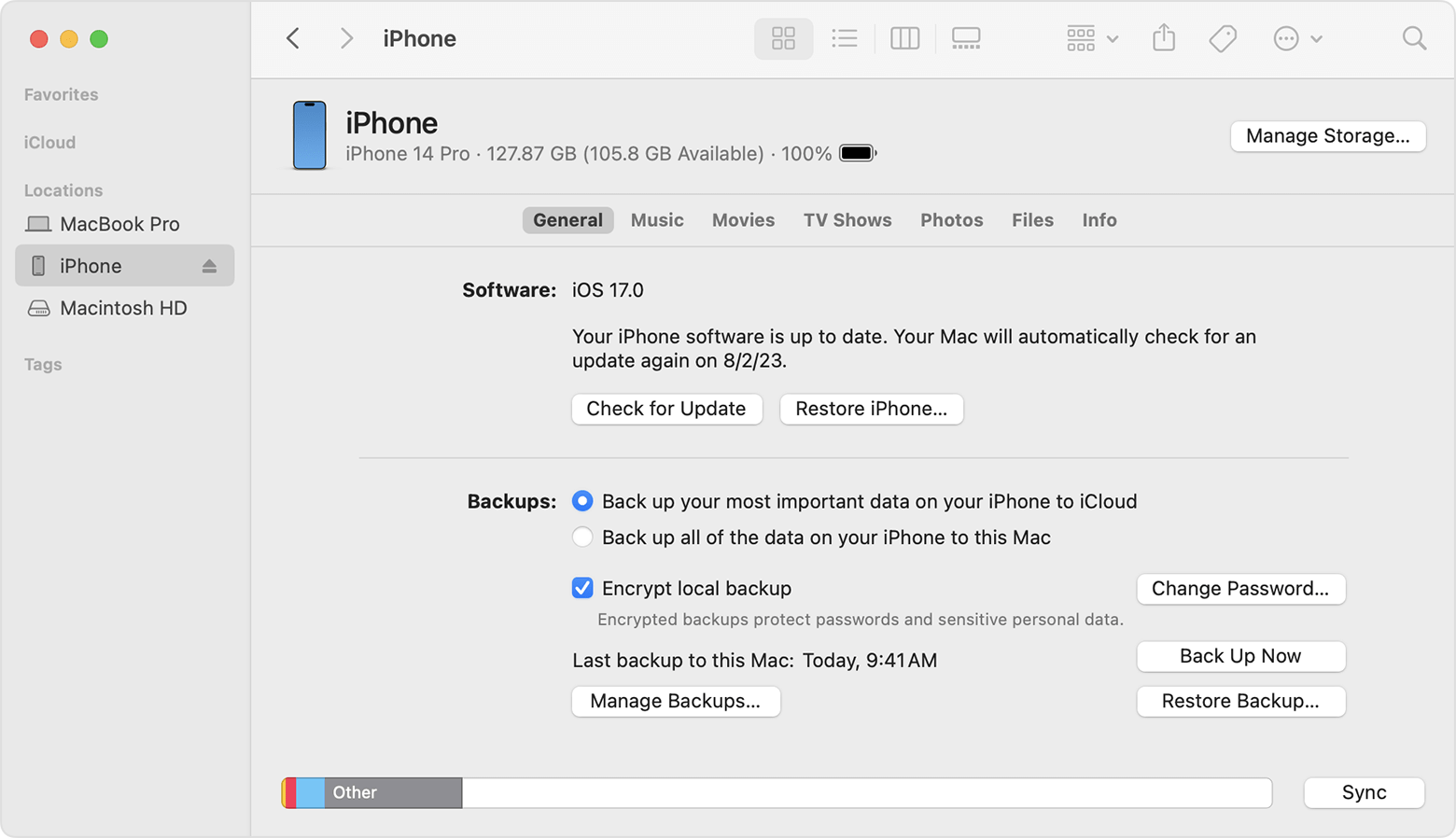
Step 1. Connect your iPhone to your PC. Open iTunes on your computer (or Finder on Mac).
Step 2. Select your iPhone when its icon appears in the window.
Step 3. Open the Backups section and check the date of the most recent backup — it must predate the deletion.
Step 4. Click Restore Backup, choose a relevant backup, then click Restore and wait until the whole backup file is restored. Please note that you have to keep your device connected before the whole process is completed.
Note
Since all the data will be restored to your iPhone, the current data on your iPhone may get overwritten. If you would rather not gamble on the backup's contents, you can recover deleted videos from iPhone with D-Back instead — its backup-scanning mode tells you whether the video is inside before you overwrite anything.
Part 4. How to Back up iPhone Videos for Free
Losing your iPhone videos is painful, and almost always avoidable. A backup in place turns recovery into a non-issue when it happens.
Using iCloud Backup:
Most iPhone users have an iCloud account, and iCloud provides a complimentary 5GB of storage that backs up your videos automatically. That fills up fast with video — and once it's full, backups silently stop. Check Settings > [your name] > iCloud > Manage Account Storage regularly, or upgrade. Here's how to use iCloud Backup:
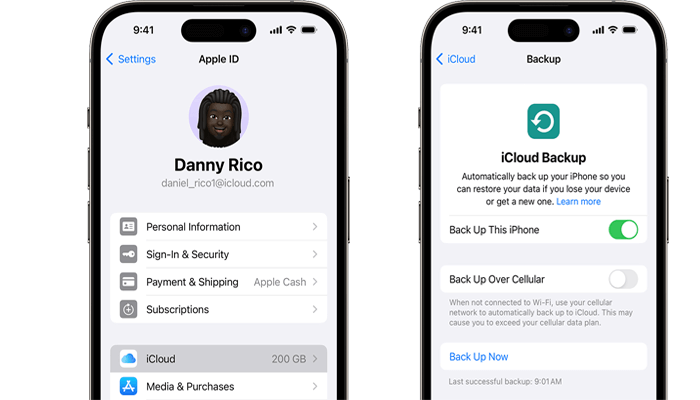
Step 1. Access Settings on your iPhone and tap your name displayed at the top.
Step 2. Select iCloud, then locate iCloud Backup and ensure it's switched on (enabled). This screen also allows you to initiate a manual backup at your convenience.
Using iTunes/Finder for Backups:
If iCloud storage proves inadequate for your extensive video collection, or if you prefer an alternative method, iTunes/Finder on Windows or Mac computers offers another backup option. Here's the process:
Step 1. Connect your iPhone to your computer using a cable.
Step 2. Open iTunes/Finder and locate your iPhone within the left-hand side menu.
Step 3. Click the phone icon and choose Back Up Now under the Backups section, then allow the backup process to complete successfully.
Tips
One thing to get right: iCloud Backup and iCloud Photos are two different things. iCloud Backup snapshots device data — messages, app data, settings. iCloud Photos stores your actual photo and video files. Turn on both, or a deleted video has nothing to come back from. And if you use Optimize iPhone Storage, full-resolution originals live only in iCloud.
Part 5. FAQ about iPhone Video Recovery
1 Where are deleted videos stored on iPhone?
They are moved to the "Recently Deleted" album inside the Photos app, which keeps them for 30 days before removing them permanently. See Part 1 for the four steps that get them back.
2 Can you recover deleted videos on iPhone after 30 days?
Sometimes. If a backup exists that was made before the video was deleted, restoring it will bring the video back. If every backup is newer than the deletion — or there is no backup at all — the only remaining option is a third-party tool that scans the device directly, and the sooner you run it, the better the odds.
3 Can I recover deleted videos from iPhone without a backup?
Yes — this is exactly the case D-Back is built for. It scans the iPhone directly rather than relying on a snapshot, so it works when no backup exists. Success depends on how much has been written to the device since the deletion, so stop using the phone immediately and scan as soon as you can.
4 Why didn't restoring my iCloud backup bring my videos back?
Two likely reasons. The backup may have been created after the deletion, so it never contained the video. And if iCloud Photos is on, iCloud Backup does not duplicate your photos and videos — they already live in iCloud Photos. In that setup a backup restore handles messages, app data and settings, while the video has to come back through the iCloud Photos route.
5 Do videos deleted from WhatsApp or Files go to Recently Deleted?
No. The Recently Deleted album in Photos covers only media managed by Photos. Videos in WhatsApp live in that app's own storage and are often removed immediately. Files in iCloud Drive have a separate Recently Deleted in the Files app with its own 30-day window, but files kept purely on the device have no recycle bin on iOS.
6 Is it safe to use iPhone recovery software, and how long does it take?
Reputable tools scan the device locally and don't upload your data anywhere. Look for a free scan and preview before payment, so you can confirm the video is recoverable before spending anything. The scan usually takes a few minutes to around half an hour, and recovering the selected videos is fast once it completes.
Bottom Line
Losing or mistakenly deleting videos on the iPhone always deranges us. Fortunately, with the methods above you can recover permanently deleted videos from iPhone — with or without a backup. Check the Recently Deleted album first if the deletion was recent; restore a backup if one predates the deletion; and if neither applies, D-Back can scan the device itself, with a free scan and preview. Pick the method that fits your situation, and act quickly.
- Supports a wide range of data types such as messages, photos, videos
- AI repair broken/corrupted files, photos and videos.
- Free to scan and preview the deleted videos before you pay.
- Retrieve lost data from different types of devices
Written by Brandon Eldred. Technical accuracy reviewed on September 18, 2026; updated to reflect iOS 27 and the current iCloud Photos and iCloud Backup behaviour.


(Click to rate this post)
Generally rated 5 (256 participated)

Rated successfully!

You have already rated this article, please do not repeat scoring!