

















 Shop
Shop


If Apple ID is greyed out on iPhone, the problem is usually a restriction, not a broken button. Screen Time, a management profile, poor network connection, Apple server issues, or an account setting can make Apple Account controls unavailable.
This guide updates the old Apple ID grayed-out fixes for modern iPhone settings, including Apple Account terminology, Screen Time restrictions, and MDM limits.

Quick answer
If Apple ID or Apple Account is greyed out in Settings, start with Screen Time restrictions, MDM supervision, internet status, and Apple system status. If the account area is blocked by restrictions you cannot remove, LockWiper can help in supported Screen Time, Apple Account, or MDM-related cases on a device you own or are authorized to manage.
In this article:
- Why Is My Apple ID Greyed Out?
- How to Fix Apple ID Greyed Out on iPhone
- Turn Off Screen Time Account Restrictions
- Use LockWiper When Restrictions Cannot Be Removed

- Reset the Screen Time Passcode
- Check Apple System Status
- Reset All Settings
- Check Internet and Account Sign-In
- FAQs About Apple ID Greyed Out
- Conclusion
Why Is My Apple ID Greyed Out?
The most common cause is Content & Privacy Restrictions under Screen Time. When account changes are blocked, Apple Account settings may appear greyed out and you cannot sign out, change account details, or access iCloud settings normally.
The fix depends on whether a restriction, management profile, or server issue is blocking the account controls.
- Screen Time restrictions: Account changes may be set to Don't Allow.
- MDM profile: A school or company profile can block Apple Account changes.
- Apple server issue: Apple Account services may be temporarily unavailable.
- Network problem: Poor Wi-Fi or cellular connection can stop Settings from loading account status.
- Old settings state: A settings reset may clear a stuck preference without erasing the device.
How to Fix Apple ID Greyed Out on iPhone
1 Turn Off Screen Time Account Restrictions
Go to Settings > Screen Time > Content & Privacy Restrictions. Tap Account Changes, then choose Allow. If the device asks for a Screen Time passcode and you know it, enter the code and check Apple Account again.
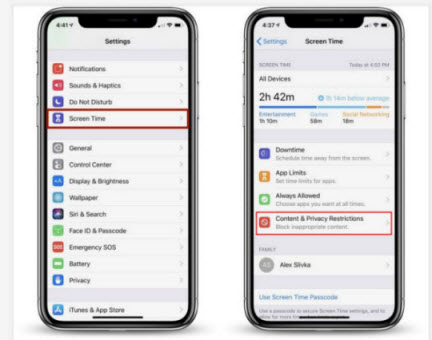
After changing Account Changes to Allow, close Settings and reopen it. If the Apple Account panel is still greyed out, restart the iPhone once before moving to the next method. A settings view can stay cached after the restriction has already been changed.
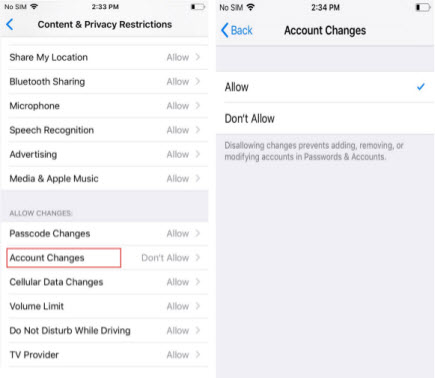
If the setting is managed by a parent, school, or employer, ask the person or organization that controls the device. Do not try to remove restrictions from a device you are not allowed to manage.
2 Use LockWiper When Restrictions Cannot Be Removed
iMyFone LockWiper can be helpful when your Apple Account settings are greyed out. The right mode to use depends on your lock type: Screen Time removal for forgotten restriction passcodes, Apple Account removal for supported activated-device cases, and MDM removal for authorized managed-device scenarios.
This is also why choosing the correct mode matters. If the only problem is a forgotten Screen Time passcode, do not start with Apple Account removal. If the iPhone shows Remote Management during setup, use the MDM path. If the account area is blocked on an activated device, the Apple Account module may be the better route.


LockWiper for Greyed-Out Apple Account
- Screen Time removal: Helps when account changes are blocked by a Screen Time passcode you no longer know.
- Apple Account removal: Useful in supported cases where an activated device you own cannot sign out normally.
- MDM removal: Helps with personal or second-hand devices affected by management restrictions.
- Guided workflow: Lets you choose the lock type instead of trying unrelated Settings fixes repeatedly.
- Wide compatibility: Supports the latest iPhone like iPhone 17 running on iOS 27.
Step 1: Open LockWiper and choose the mode that matches the restriction. For Screen Time, select the Screen Time passcode option.
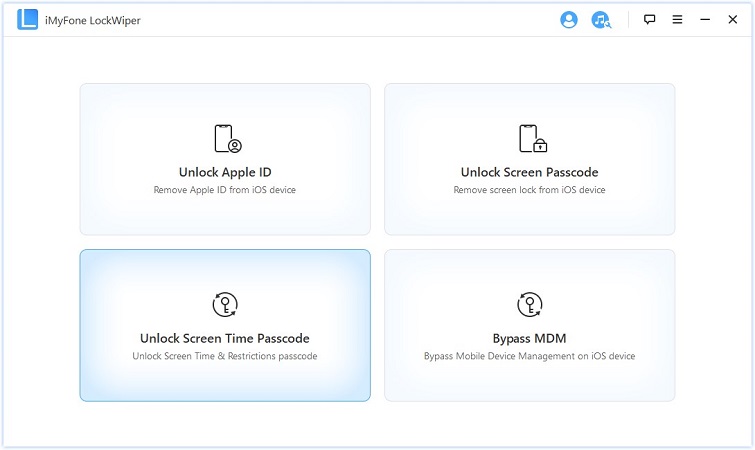
Step 2: Connect the iPhone and follow the on-screen prompts.
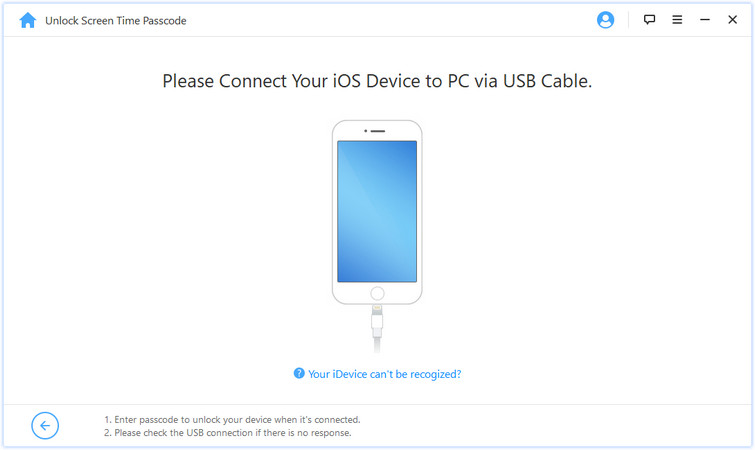
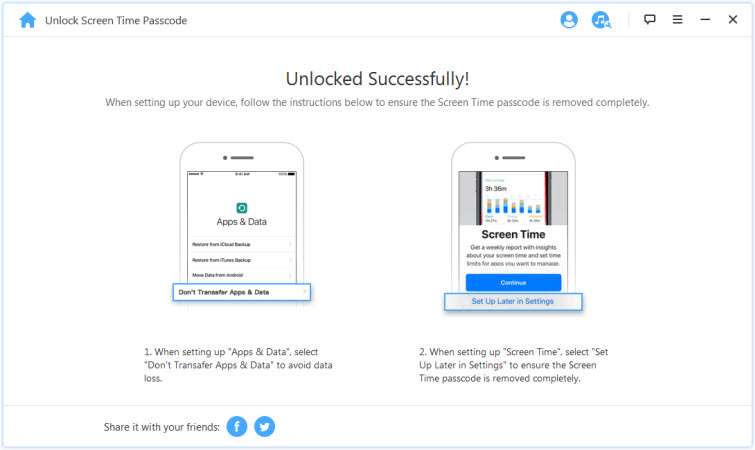
Step 3: Complete the removal process, then return to Settings and check whether Apple Account is usable again.
3 Reset the Screen Time Passcode
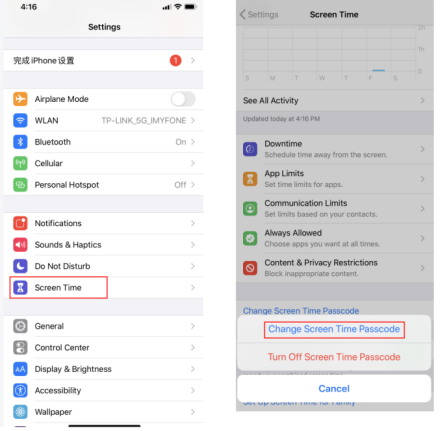
If Screen Time belongs to your Apple Account or your family group, use Apple's reset option before trying a tool. Open Screen Time, tap Change Screen Time Passcode, then choose Forgot Passcode? if available. Sign in with the Apple Account used to set it up.
This option works only when the device can verify the Apple Account used for Screen Time recovery. If the recovery account is unknown, or the device was set up by a previous owner, solve the ownership issue first instead of repeatedly guessing passcodes.
4 Check Apple System Status
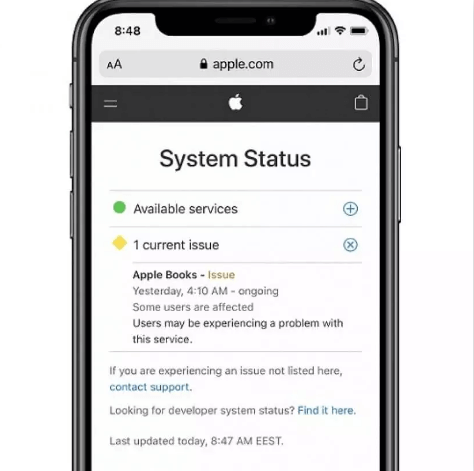
If Apple Account settings are greyed out or not loading, check Apple's System Status page. If Apple Account, iCloud, or related services are down, wait until Apple resolves the issue before changing account settings.
Server problems usually affect sign-in, account details, iCloud syncing, or payment settings rather than only one toggle. If several Apple services are marked unavailable, waiting is better than resetting device settings immediately.
Need to remove a restriction?
If Screen Time or MDM is blocking Apple Account settings on your own device, LockWiper gives you a guided unlock path.
5 Reset All Settings
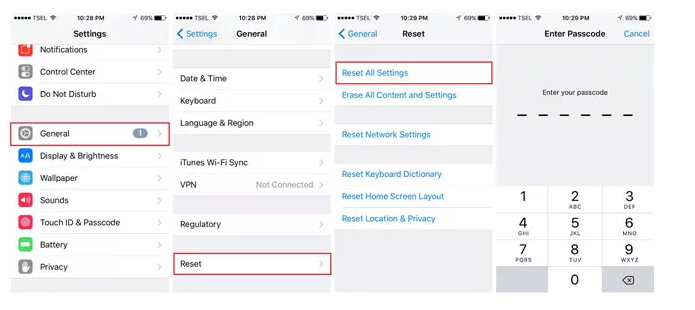
Resetting all settings can fix a stuck Settings state without deleting your photos, messages, or apps. Go to Settings > General > Transfer or Reset iPhone > Reset > Reset All Settings. You may need to reconnect Wi-Fi, VPN, and some preferences afterward.
6 Check Internet and Account Sign-In
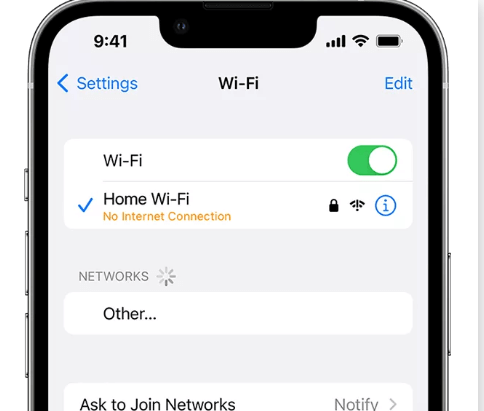
Switch between Wi-Fi and cellular, turn off VPN temporarily, and restart the iPhone. If Apple Account is still greyed out, check whether the device is supervised in VPN & Device Management. A supervised device may need administrator action.
FAQs About Apple ID Greyed Out
1 Why is my Apple ID greyed out in Settings?
Usually because account changes are restricted by Screen Time, MDM, or device supervision. Network and Apple service issues can also make the account area unavailable temporarily.
2 How do I unlock Apple ID in Settings?
First allow account changes in Screen Time. If the device is managed, contact the administrator. If the restriction is on your own device and you cannot remove it normally, use the matching LockWiper module.
3 Is Apple Account greyed out the same as Activation Lock?
No. Greyed-out Settings usually means a restriction inside an activated device. Activation Lock appears during setup and requires the linked Apple Account or proof of ownership.
Conclusion
Apple ID greyed out on iPhone is usually fixable once you identify the restriction behind it. Start with Screen Time account changes, Apple service status, and network checks. If the device is yours and the restriction cannot be removed normally, iMyFone LockWiper gives a practical path for Screen Time, Apple Account, or MDM-related cases.


Josh Levine, an expert and writer specializing in IT technology and software, is enthusiastic about helping people solve smart phone issues and sharing useful solutions.
-
[2025] How to Use iforgot.apple.com Unlock Apple ID?
iforgot.apple.com can unlock Apple ID and reset Apple ID password. Let's see how it works to help you regain control of your device.
3 mins read -
How to Use 3uTools MDM Bypass & Its Alternatives [ 2026 ]
How to use 3uTools MDM bypass tool? This article gives a full review of how to bypass MDM with 3uTools and its best alternatives as well.
3 mins read -
What Is iOS 18 iPhone Inactivity Reboot Feature? How Does It Work?
Do you know the feature of iPhone inactivity reboot after 3 days in iOS 18.1? What is it and how does it work? This article tells you all!
2 mins read -
[2026] 4 iPad Unlock Software [Free Way Included]
Looking for solutions to unlock ipad for free? This post introduce 4 ipad unlock software,including the free ipad unlock tool to you. Check it out!
4 mins read -
[2025] What Is iOS Account Manager & How to Remove It
What is iOS Account Manager? Can I remove it? This guide will explain what does iOS Account Manager mean and provide steps for you to remove it with ease.
3 mins read -
How to Fix This Apple ID Is Not Valid or Supported
This guide focuses on explaining and resolving why this apple id is not valid or not supported issues to help you fix Apple ID not working on iPhone problems.
3 mins read
Was this page helpful?
Thanks for your rating
Rated successfully!
You have already rated this article, please do not repeat scoring!