
















 Shop
Shop


If your iPhone is stuck on the support.apple.com/iphone/restore screen after an iOS 27 update, restore, downgrade, or interrupted computer repair, treat it as a recovery-mode problem first. The screen usually means iOS cannot boot normally and needs a computer-based update, restore, or repair path.
This guide explains what the iPhone restore screen means, what to try before erasing the phone, and when a guided iOS system repair workflow is more practical than repeating the same Finder, Apple Devices, or iTunes restore.

In this article:
- What support.apple.com/iphone/restore Means
- Fix iPhone Stuck on the Restore Screen
- Exit Recovery Mode with Fixppo

- Repair iOS When the Restore Screen Returns
- Update Finder, Apple Devices, or iTunes
- Update or Restore in Recovery Mode
- Use DFU Restore for Serious Firmware Failure
- Can You Fix the Restore Screen Without a Computer?
- Why the iPhone Restore Screen Appears
- FAQs

Quick answer
If your iPhone shows support.apple.com/iphone/restore, connect it to a computer and try Update first. If it returns to the restore screen, fails during firmware download, or loops after iOS 27, use a guided repair workflow before moving to erase-based restore or DFU restore.
What support.apple.com/iphone/restore Means
The URL points to Apple recovery instructions. On the iPhone itself, it appears with a cable/computer icon when the device has entered recovery mode. This can happen after a failed iOS 27 update, a restore interruption, a downgrade attempt, or a firmware error.
The important choice is Update versus Restore. Update tries to reinstall iOS while keeping data. Restore erases the device and installs iOS again. If the iPhone can still be updated, try Update before Restore.
Fix iPhone Stuck on the Restore Screen
1 Exit Recovery Mode with Fixppo
When the iPhone is only stuck in recovery mode and the system is not badly damaged, iMyFone Fixppo can help exit recovery mode from a computer without walking through a full restore. This is the fastest option to try when the screen appeared after a failed update but the device is still detected.
Connect the iPhone, open Fixppo, choose the recovery-mode option, and use Exit Recovery Mode. If the iPhone restarts normally, back it up before making another iOS 27 update, restore, or downgrade attempt.
2 Repair iOS When the Restore Screen Returns
If the iPhone exits recovery mode but falls back to support.apple.com/iphone/restore, the issue is more likely an iOS repair problem than a temporary mode issue. Fixppo Standard Mode is designed for this point in the workflow: the device is detected, the user wants a guided firmware repair, and Apple Update or Restore keeps failing.
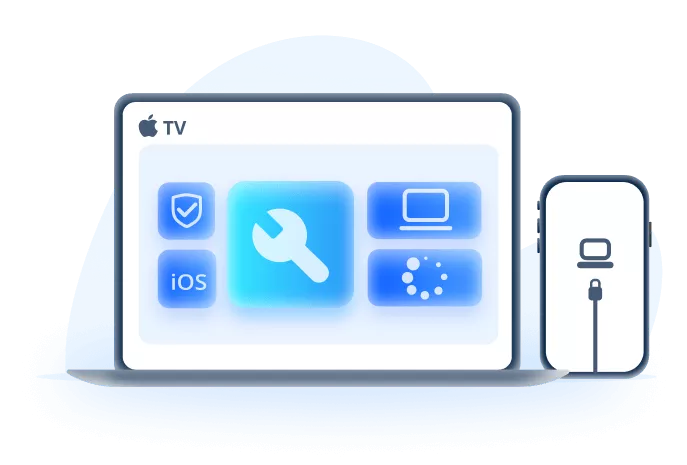
Key Features of iMyFone Fixppo:
- Recovery Mode Help: Exit recovery mode or repair iOS when the restore screen returns after iOS 27 update failure.
- Guided Firmware Download: Helps select firmware for the detected device instead of manually guessing an IPSW file.
- Lower Data Risk Path: Standard Mode is designed to repair common iOS issues with lower data risk than erase-based restore.
- Broad Repair Scenarios: Useful for restore loops, Apple logo, boot loop, black screen, and failed update states.
- Clear Limits: It cannot repair hardware damage, broken USB ports, or a device the computer cannot detect.
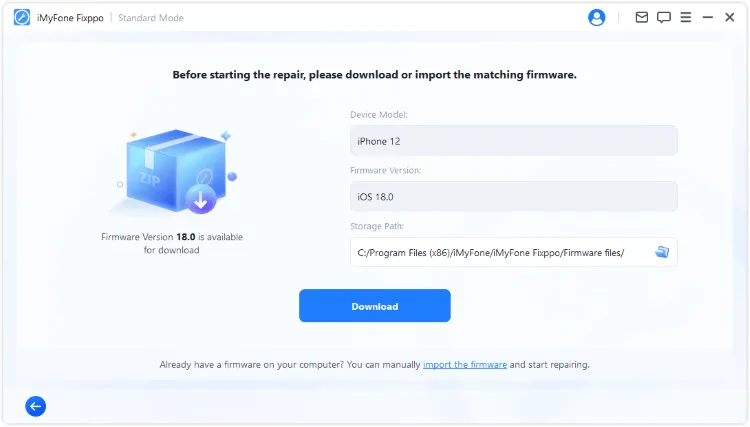
Step 1: Install Fixppo, connect the iPhone with a reliable USB cable, and choose Apple System Repair.

Step 2: Choose Standard Mode when the device can be detected and the issue looks like an iOS software problem.

Step 3: Download the firmware shown for your exact model, then start the repair and keep the cable connected until the iPhone restarts.
3 Update Finder, Apple Devices, or iTunes
Old computer software can fail to download or install firmware correctly. On macOS, update Finder through macOS updates. On Windows, use the Apple Devices app for newer setups or update iTunes if your workflow still relies on it.
To update iTunes on Mac running macOS Catalina or later:
- If there is an update available, click Update Now to install.
- From Apple Menu, choose System Preferences > Software Update to check for the latest macOS update.
To update iTunes on Mac running macOS Mojave or earlier:
- Launch App Store > check if there is any update for iTunes > click Updates if there is a new version for iTunes.

To update iTunes on Windows:
- Launch iTunes > hit on Help > select Check for Updates from drop-down menu. Then follow the on-screen instruction to finish the update process.

After updating your iTunes, try again the process you were about to make before the support.apple.com/iphone/restore issue occurred.
4 Update or Restore in Recovery Mode
Connect the iPhone to the computer, open Finder, Apple Devices, or iTunes, and choose Update first. If Update fails repeatedly, choose Restore only after confirming that you have a usable iCloud or computer backup.
5 Use DFU Restore for Serious Firmware Failure
DFU restore is the deeper erase-based path. Use it when recovery-mode restore fails, the firmware keeps failing, or Apple Support recommends a full restore. It will remove current data from the device.
Step 1: Connect your iPhone to the PC then launch iTunes.
Step 2: Follow the instructions below to put your device in DFU mode.
- iPhone 6 and earlier: Begin with pressing the Power and Home buttons at the same time and then after 8 seconds, release only the Power button. While holding the Home button, you'll be notified that iTunes has detected your device in recovery mode. Now release the other button as well.
- iPhone 7/7 Plus: The steps are somewhat alike to the above. You just need to press the Volume Down button instead of the Home button.
- iPhone 8 and later: Give a quick tap on Volume Up then Volume Down. Hold the Power button afterward. Stay for a few seconds and your device's screen will go black. Keep holding the Power button and then begin to press the Volume Down key. After 5 seconds, leave the Power key and continue to hold the other button until your device is detected.
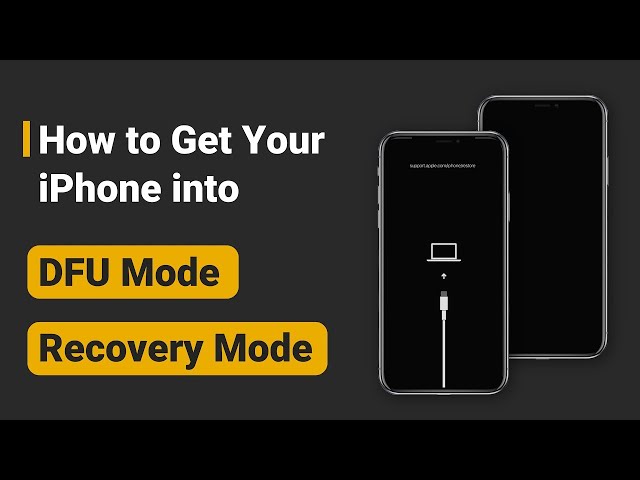
Step 3: If your iPhone is in black screen, it means it has entered the DFU mode. Now, click on the OK button for iTunes proceed to restore your iPhone.


One-click Get iPhone Back to Normal
The DFU method can be time-consuming. If you need a quick solution, Fixppo lets you exit the support.apple.com/iphone/restore screen with a single click, free to exit!
Can You Fix the Restore Screen Without a Computer?
Only simple cases can be fixed without a computer. Try a force restart first. If the iPhone returns to the same restore screen, a computer is required because the device needs iOS update, restore, or repair access.
If none of the mentioned fixes work, we suggest you book an appointment with Apple Support as soon as you can.

Why the iPhone Restore Screen Appears
- An iOS 27 update was interrupted or failed.
- A restore or downgrade attempt installed incomplete or incompatible firmware.
- The iPhone ran out of power or lost USB connection during repair.
- Finder, Apple Devices, or iTunes failed while preparing or verifying firmware.
- There is storage, battery, port, or hardware damage behind the software failure.
FAQs
1 Does support.apple.com/iphone/restore always erase iPhone?
No. Choosing Update may reinstall iOS without erasing data. Choosing Restore or DFU restore erases the device.
2 Why does my iPhone return to the restore screen after Update?
The iOS installation may still be damaged, the firmware download may have failed, or the device may have a deeper hardware or storage problem.
3 Is Fixppo a replacement for Apple restore?
Fixppo is a guided iOS repair option when standard recovery steps keep failing. Apple restore remains the official erase-based route, especially when hardware service may be needed.
Conclusion
The support.apple.com/iphone/restore screen is recoverable in many cases, but the right path depends on whether the iPhone can still be updated. Start with Update, use Fixppo when recovery mode or iOS repair keeps looping, and save DFU restore or Apple service for cases where firmware repair cannot bring the device back.


Melvin Cooper has over 10 years of experience in the technology industry and is an expert at providing tips and handy solutions to Apple and Android users. Dedicated to helping millions of users improve their experience with mobile devices, he has maintained an impressive record of solving problems.
-
Fix iPhone Stuck on Update Requested [iOS 27 Supported]
iPhone stuck on update requested? Learn why it happens and discover 8 proven solutions to get your iOS update back on normal without data loss.
3 mins read -
[2025 New] How to Stop iOS 17/18/26 Update in Progress?
How to stop iOS 17/18/26 update in progress when you feel like staying in the current iOS version? Here's how to do it via 4 methods.
3 mins read -
5 Ways for iOS 26 Beta Download [Developer & Public Beta]
How to get iOS 26 beta? Whether you want to download iOS 26 developer or public beta, you can find the suitable methods with our guide. 5 Ways here!
3 mins read -
17 Important Facebook Statistics You Should Know in 2025
Do you want to know some up-to-date Facebook statistics? We break down 17 must-know Facebook stats about demographics, engagement rate and more.
3 mins read -
[2025 Full Guide] All About iOS Update Issues and Solutions
Have you encountered different problems during or after iOS update? This article focuses on all iOS update issues and solutions. Hope you can learn from it.
5 mins read -
[Full Guide] 50+ iOS 18 Bugs and Fixes You Should Know 2025
What are some known iOS 18 bugs? Read on this article to learn everything about iOS 18 bugs and fixes.
5 mins read
Was this page helpful?
Thanks for your rating
Rated successfully!
You have already rated this article, please do not repeat scoring!