

















 Shop
Shop


If iOS 27 beta is not stable enough on your iPhone, removing the beta is not always as simple as deleting one switch. Turning off Beta Updates stops future beta builds, but going back to a stable iOS version usually depends on Apple signing, backup compatibility, and whether you use a computer restore or a guided downgrade tool.
This guide explains how to remove iOS 27 beta, when deleting the beta profile is enough, and when you need a full downgrade or restore path instead.


Quick answer
You can remove iOS 27 beta in two different ways. If you only want to stop future beta updates, turn Beta Updates off in Settings. If you want to uninstall iOS 27 beta and go back to a stable iOS version now, use a computer downgrade or restore path, and check backup compatibility before you begin.
In this article:
- Things to Prepare Before Removing iOS 27 Beta
- How to Remove iOS 27 Beta from iPhone with Computer?
- Uninstall iOS 27 Beta with iMyFone Fixppo [No Data Loss]

- Get Rid of iOS 27 Beta via Finder / Apple Devices / iTunes [Erase Data]
- How to Remove iOS 27 Beta Without Computer [Can't Downgrade]
- FAQs about Uninstalling iOS 27 Beta
Things to Prepare Before Removing iOS 27 Beta
Before you remove iOS 27 beta from iPhone, separate two goals:
- Stopping future beta updates: This can be done in Settings.
- Downgrading the current system: Requires a computer, a signed firmware version, and a backup plan.
Use the checklist below before you begin. It helps reduce restore failures, Activation Lock surprises, and wasted time if the backup cannot be restored to the older iOS version.
1 Disable Find My iPhone
"Find My iPhone" includes an Activation Lock feature, and you cannot restore or update the device without entering the Apple ID and password associated with it when this feature is enabled.
Downgrading from an iOS beta may erase the device and reinstall an older signed iOS version. If Find My is enabled, you may need the Apple Account password during setup or restore. Make sure you know the credentials before starting.

Step 1: Go to Settings, then tap on your Apple ID at the top of the screen.
Step 2: Select Find My, tap on the Find My iPhone.
Step 3: Toggle it off by entering the Apple ID password.
2 Back Up Your iPhone
Before trying to downgrade from iOS 27 beta, make a current backup. A backup made on a newer beta may not restore cleanly to an older stable iOS version, so keep important photos, files, messages, and app data separately synced when possible. Finder, Apple Devices, iTunes, or iCloud can help you create a backup first.

Step 1: Update iTunes, open it and connect your device to the computer.
Step 2: Click the Summary tab, then find the Back Up Now button, confirm to proceed.
3 Turn Off Automatic Update
Turning off automatic updates helps prevent your device from downloading another beta build while you are trying to leave the beta channel.
If you're still enrolled in the beta program, turning it off can also avoid interruptions during the downgrade process and save you from unnecessary battery drain caused by background downloads. Here's how to do.

Step 1: Go to Settings > General > Software Update.
Step 2: Click the Automatic Updates, toggle off the iOS Updates to disable this feature.
How to Remove iOS 27 Beta from iPhone with Computer?
If you want to completely remove iOS 27 beta from your iPhone and return to a stable iOS version now, a computer method is the clearest path. It can install signed firmware and complete the restore or downgrade process instead of simply turning off future beta updates.
1 How to Uninstall iOS 27 Beta with iMyFone Fixppo?
If you want a guided way to remove iOS 27 beta, iMyFone Fixppo is the strongest product path. It puts the iOS upgrade/downgrade workflow, firmware download, and device detection in one place, which is easier than manually managing IPSW files and restore steps.
Fixppo is especially useful when you want to go back from iOS beta but do not want to guess which firmware file is suitable for your iPhone. It also includes backup support before downgrade, which makes the product section more useful for readers who are ready to act but still worried about losing important data.
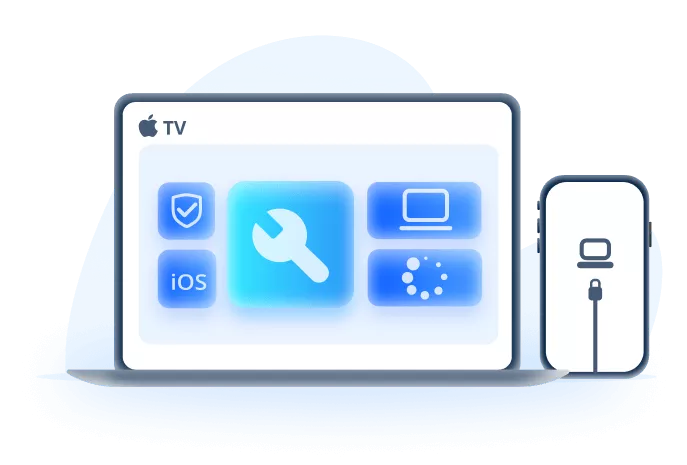
Key Features of iOS 27 Beta Downgrader:
- No Data Loss During Downgrade: Fixppo lets you back up your data before removing the beta, so you do not have to start with an erase-only path.
- Safe and Efficient: It allows safe downgrades from beta version, ensuring your device works seamlessly with the older iOS version.
- No Technical Skills Required: Easily downgrade iOS without manually handling every restore step, best for beginners.
- Recent iOS support: Supports recent iPhone models and iOS versions, including iOS 27 beta downgrade scenarios, on supported devices.
- Works for Both Windows and Mac Users: It is available for both Windows and Mac systems, you can download and use it no matter the platform.
- No iTunes/Jailbreak Needed: No need to use iTunes to restore iOS to the previous version, no jailbreak needed.
Here is how to remove iOS 27 beta without jailbreak using iMyFone Fixppo.
Step 1: Download and launch Fixppo to your computer, connect your iPhone using a USB cable and click the iOS Upgrade/Downgrade tab.

Step 2: Click Downgrade iOS to remove iOS 27 beta by downgrading to an available signed version.

Step 3: Fixppo will detect your iPhone and show you the available iOS firmware for downgrading. Click the Download button to get the iOS firmware.

Step 4: When the firmware is downloaded, click the Start Downgrade iOS button for Fixppo to begin removing iOS 27 beta from your iPhone.

When the downgrade finishes, the iPhone will restart. Check Settings > General > About to confirm the installed iOS version. If the target firmware is no longer signed, the downgrade cannot be completed through normal restore methods.

You can watch the video to downgrade iOS beta.

2 How to Get Rid of iOS 27 Beta via Finder / Apple Devices / iTunes?
If you prefer Apple's own restore route, use Finder on macOS, Apple Devices on current Windows setups, or iTunes on older Windows systems. This route is useful for advanced users who understand IPSW selection, signing status, and backup limitations.
Here is how to get rid of iOS 27 beta via Finder, Apple Devices, or iTunes:
Step 1: Go to IPSW website to download the appropriate IPSW file you want for downgrading.
Step 2: Use a USB cable to connect your iPhone to the computer where iTunes/Finder is installed.
Step 3: Put your iPhone in recovery mode using the following method.
- For iPhone 8/X/11/12/13/14/15/16/17: Quickly press and release the Volume Up button, then quickly press and release the Volume Down button. Keep holding the Power button, release it when you see the recovery mode screen, which appears after the Apple logo.
- For iPhone 7/7 Plus: Press and hold the Volume Down + Side buttons at the same time for about 10 seconds. Release them when the recovery mode shows up.
- For iPhone 6s or earlier: Hold both the Home + Sleep/Wake buttons for about 10 seconds. Don't release them until you see the recovery mode screen.

Step 4: In iTunes (Windows/macOS Mojave and earlier) or Finder (macOS Catalina and later), select your device when it appears in the sidebar.
Step 5: In iTunes or Finder, hold down the Shift (Windows) or Option (Mac) key, then click on Restore.

Step 6: When a file dialog opens, navigate to the downloaded IPSW file and select it.
Step 7: The Apple restore tool will ask you to confirm. Click Restore again to start uninstalling the iOS 27 beta and returning to the selected signed firmware.
Note
You can restore a backup after the process, but a backup created on iOS 27 beta may not restore to an older stable iOS version. Keep a separate copy of important files before downgrading. If you prefer not to use iTunes, learn how to downgrade iOS without iTunes may help.
How to Remove iOS 27 Beta Without Computer
If you do not have access to a computer, you can remove the beta enrollment from Settings. This stops future iOS 27 beta updates, but it does not instantly downgrade the iPhone. You stay on the installed beta until Apple releases a newer public version you can update to.
For iPhone models running before iOS 16.4:
Step 1: Go to Settings > General > VPN & Device Management.
Step 2: Click Remove Profile to take off the iOS Beta Profile.
Step 3: Restart the device to apply changes.

For iPhone models running iOS 16.4 and higher:
Step 1: Navigate to Settings > General > Software Update > Beta Updates.
Step 2: Select Off to stop receiving beta updates..
Step 3: Once the next official public iOS version is released, update your device to remove the beta version.

Note
Taking off the iOS 27 beta profile or turning Beta Updates off will stop future beta updates. It will not instantly remove the installed beta from your iPhone. If you want to go back now and the target firmware is still signed, use a computer downgrade path such as Fixppo or Apple's restore tools.
FAQs about Uninstalling iOS 27 Beta
1 Can you uninstall iOS 27 beta?
Yes. You can stop future iOS 27 beta updates in Settings, or uninstall the installed beta by downgrading/restoring with a computer. The downgrade path depends on Apple signing the target firmware for your iPhone model.
2 Does factory reset downgrade iOS version?
No, performing a factory reset will not downgrade the iOS version. A factory reset erases apps, settings, and personal files, then returns the device to factory settings on the same installed iOS version.
3 Can I downgrade iOS from beta?
Yes, you can downgrade iOS from beta when Apple is still signing the target version for your iPhone. If the version is no longer signed, normal downgrade tools cannot bypass Apple's signing check.
Conclusion
Removing iOS 27 beta depends on what you want to do next. Turn Beta Updates off if you only want to leave the beta channel. Use Finder, Apple Devices, iTunes, or Fixppo if you want to downgrade now while the target firmware is still signed.
If you want a clearer downgrade workflow with firmware detection and backup-related support, iMyFone Fixppo is the better path to try before manually managing IPSW files.


Melvin Cooper has over 10 years of experience in the technology industry and is an expert at providing tips and handy solutions to Apple and Android users. Dedicated to helping millions of users improve their experience with mobile devices, he has maintained an impressive record of solving problems.
-
Fix iPhone Stuck on Update Requested [iOS 27 Supported]
iPhone stuck on update requested? Learn why it happens and discover 8 proven solutions to get your iOS update back on normal without data loss.
3 mins read -
[2025 New] How to Stop iOS 17/18/26 Update in Progress?
How to stop iOS 17/18/26 update in progress when you feel like staying in the current iOS version? Here's how to do it via 4 methods.
3 mins read -
5 Ways for iOS 26 Beta Download [Developer & Public Beta]
How to get iOS 26 beta? Whether you want to download iOS 26 developer or public beta, you can find the suitable methods with our guide. 5 Ways here!
3 mins read -
17 Important Facebook Statistics You Should Know in 2025
Do you want to know some up-to-date Facebook statistics? We break down 17 must-know Facebook stats about demographics, engagement rate and more.
3 mins read -
[2025 Full Guide] All About iOS Update Issues and Solutions
Have you encountered different problems during or after iOS update? This article focuses on all iOS update issues and solutions. Hope you can learn from it.
5 mins read -
[Full Guide] 50+ iOS 18 Bugs and Fixes You Should Know 2025
What are some known iOS 18 bugs? Read on this article to learn everything about iOS 18 bugs and fixes.
5 mins read
Was this page helpful?
Thanks for your rating
Rated successfully!
You have already rated this article, please do not repeat scoring!